Articles in this topic
Your table
Show every guest which table they sit at. Add the Your table page, switch the table on in the Seating planner and decide whether guests also see who sits with them.
4 min read
Party and event websites only.
At the door, guests ask the same thing: where do I sit? Your table answers it on their phone, from the seating plan you already made.
What guests see
A signed-in guest sees their own table, their zone and seat number when you have set one, and who they came with (their plus-ones). Two things are extra, and you decide on them: who else sits at the table, and a drawing of the room with their table marked. A guest who has not been seated yet reads "Your table has not been assigned yet. Please check back soon." A guest who has cancelled sees no table.
There are two designs of the section: Card (the table and who sits with the guest) and Plan (the card and a drawing of the room).
Add the page and show the table
-
Add the page. In the Pages tab click + Add Page and choose Your table (or The evening, which holds the table and the guestbook), then publish your website.
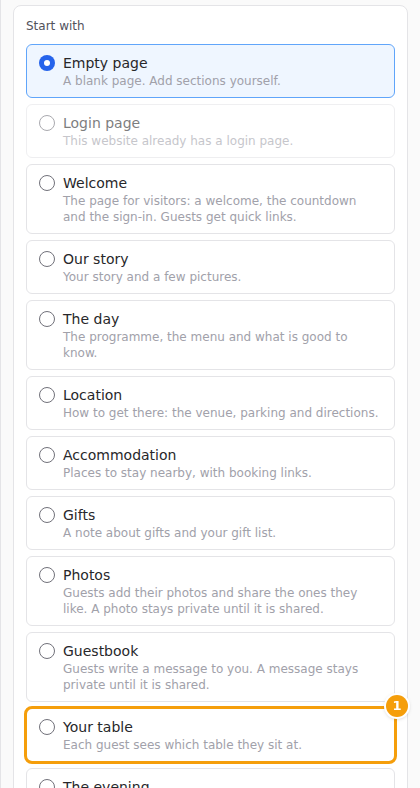
In the Add Page form, choose Your table (1) -
Show it. Open the Seating Planner and switch on Show guests their table. It is off until you do, on purpose: seating changes until the last days, and a guest told "Table 7" who is then moved to table 3 is worse off than a guest who was told nothing. The switch is available once at least one guest is seated.

In the Seating Planner: Show guests their table (1) and Also show who sits with them (2) -
Optional: tick Also show who sits with them (only confirmed guests, by first name and the first letter of the surname) and Show the room plan with their table highlighted.
The section is for signed-in guests only. If you remove the page and publish, guests lose it; your seating plan stays. The chip next to the section says Ready: guests can use this, or what is still missing, such as Waiting: “Show guests their table” is off in the Seating planner.
Good to know
The table follows your venue's seating switch. If you do not find the Seating Planner in your menu, ask your venue to switch it on. On an open event the tablemates need your confirmation that everyone who registered may see them.
Privacy
A guest sees only their own table. Other guests' diet, allergies and answers are never shown here, and a name another guest typed is never shown to a third person; a plus-one of another household appears only as "+ 2 guests".