Articles in this topic
Version history
Every publish is kept as a version. Look at older versions, put one back online, or continue editing from one.
5 min read
Every time you publish, the editor keeps a copy of your website as a version: Version 1, Version 2, and so on. The version history is your safety net. You can look at an older version, put it back online in one click, or load it into the editor to continue working from it.
Open the version history
-
In the toolbar, click the small arrow next to Publish (or Up to date).
-
Choose Version history...
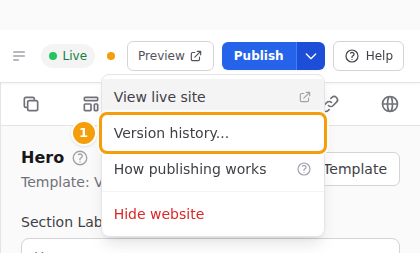
Version history... (1) in the menu next to Publish -
The Version history window opens. The newest version is at the top.
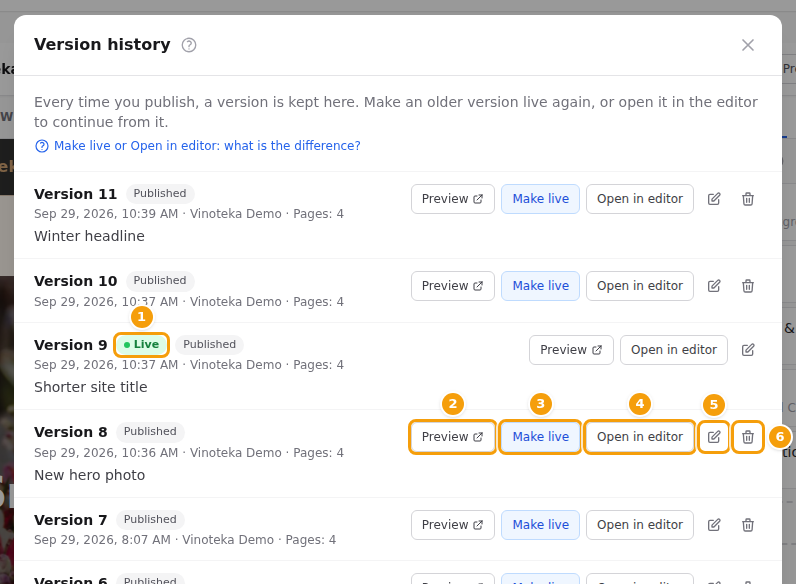
For each version you see:
- its number, for example Version 8;
- Live (green) on the version your guests see right now;
- how it was made — usually Published. You may also see Initial booking page (the one-page website every venue starts with), Existing website (your website as it was before versions were introduced), Branding update (new colours from your brand settings) or Saved draft (see Saved drafts);
- the date and time, who published it, and how many pages it has;
- its name, if you gave it one (see Name a version).
Not sure which button to use? Click Make live or Open in editor: what is the difference? at the top of the window, or read Make an older version live below. The ? next to the title opens this help. Click Close to close the window.
Preview an older version
-
In the version history, click Preview next to the version you want to see.
-
The version opens in a new browser tab. The label in the bottom left corner says which version it is, for example Preview · Version 8.
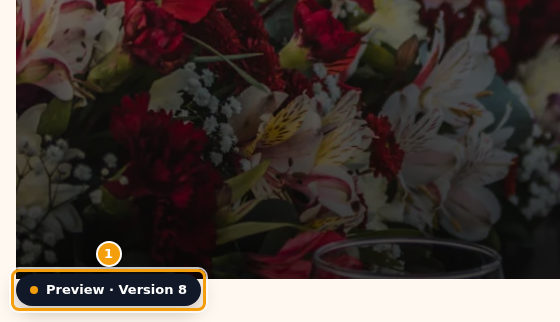
An older version in its own tab, with the Preview · Version 8 label (1) -
Close the tab to go back to the editor.
Previewing changes nothing — not your live website, and not your draft. Only people on your team can open a preview. See Who can open a preview.
Make an older version live
Something went wrong with your latest publish, or you want last month's website back? There are two ways to bring back an older version:
| Make live | Open in editor | |
|---|---|---|
| What happens | Guests see the older version straight away. | The older version is loaded into the editor. Guests see it only after you publish. |
| Your draft | Stays as it is. | Is replaced. Your old draft is kept in the history as a Saved draft. |
| Use it when | You need your old website back quickly. | You want to continue working from the older version. |
To put an older version online again:
-
In the version history, click Make live next to the version you want.
-
The editor asks Make version 8 live? (with your version's number). Click Make live.
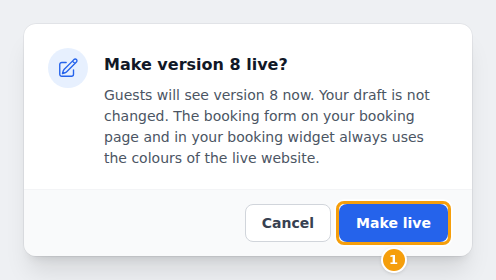
Make version 8 live? — Guests will see version 8 now. Your draft is not changed. -
A green message says Version 8 is live. The Live label has moved to that version.
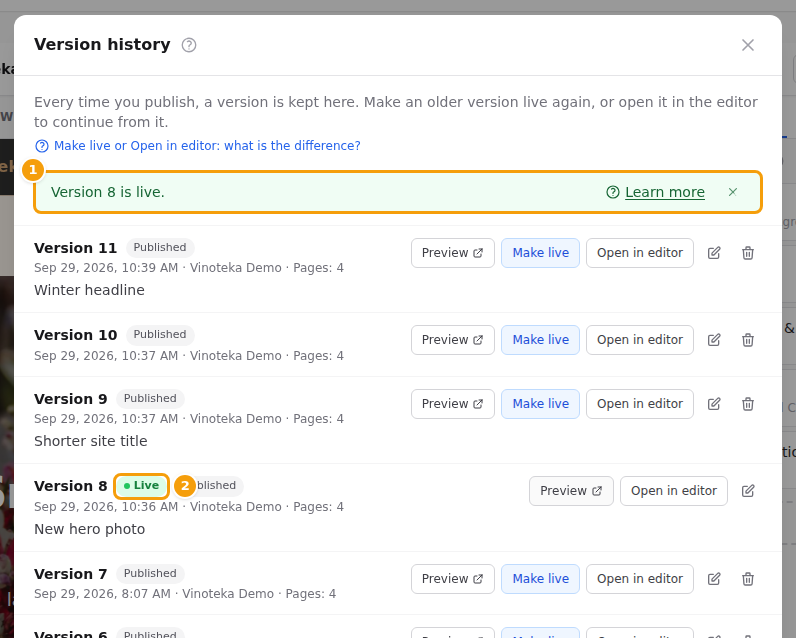
Version 8 is live (1), and the Live label has moved to version 8 (2)
Your guests see that version straight away. Your booking form uses the colours of the version that is live.
Important
Make live does not change your draft. The editor still shows what you were working on, and the toolbar shows the orange dot for unpublished changes, because your draft is different from the version that is now live. If you click Publish, your draft goes online again. Want to continue editing from the older version instead? Use Open in editor.
Tip
Just published by mistake? The quickest way back is the Undo button in the green message right after publishing. See Undo a publish.
Continue editing from an older version
Open in editor loads an older version into the editor, so you can change it and publish it again. Your live website does not change until you publish.
-
In the version history, click Open in editor next to the version you want.
-
The editor asks Open version 8 in the editor? (with your version's number). Click Open in editor.
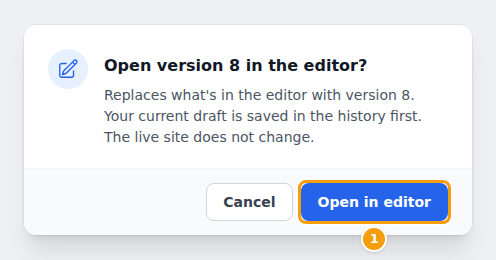
Open version 8 in the editor? — Your current draft is saved in the history first. The live site does not change. -
The editor reloads with that version. A green message tells you what happened, for example Version 8 is now in the editor. Your previous draft was saved as version 12.

Version 8 is now in the editor, and your previous draft was saved as version 12 (1) -
Make your changes, check them in the preview, and click Publish when you are ready.
Good to know
If you have unsaved changes in the Site, Nav & Footer or Page tab, the editor asks you to save them first. Click the save button in that tab, then try again.
Saved drafts
When you open a version in the editor, or pick a new template, the editor replaces your draft. So that you never lose work, it first keeps your old draft in the version history, marked Saved draft. The ? next to that label opens this help.
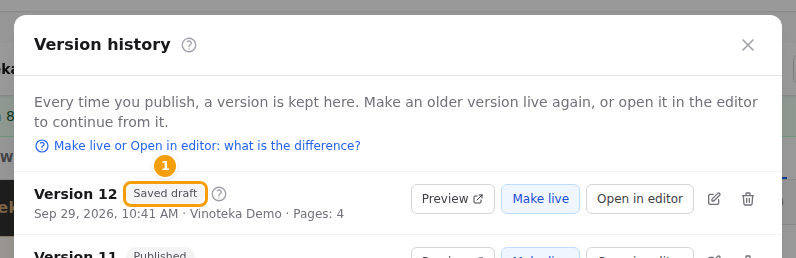
A saved draft works like any other version: you can Preview it, Open in editor to continue working on it, or Make live to publish it directly.
The editor only saves your draft when it has something new. If your draft is the same as your live website, or as a version already in the history, no extra saved draft is added.
Name a version
Give important versions a name, so you can find them again easily — for example Summer menu 2026 or Before the new photos.
- In the version history, click the pencil (Rename) next to the version.
- Type a name.
- Click Save. To remove a name, delete the text and click Save.

Delete a version
You can delete versions you don't need anymore — for example old saved drafts, or a publish you undid.
-
In the version history, click the bin (Delete) next to the version.
-
The editor asks Delete version 10? (with your version's number). Click Delete.
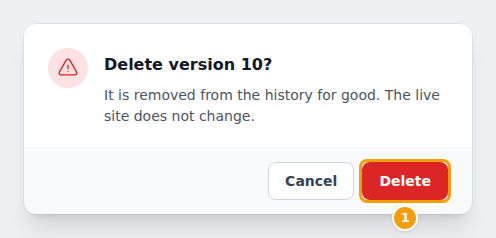
Delete version 10? — It is removed from the history for good. The live site does not change. -
The message Version 10 was deleted. appears.
Careful
A deleted version cannot be brought back. The live version has no bin: to delete it, make another version live first.
Related
- Publish your changes, and undo a publish — Publishing
- Take your website offline — Hide your website
- Start from a new template (your draft is kept as a saved draft) — Templates
- Something doesn't work — Troubleshooting