Articles in this topic
What the template choices do
One page or several, how your menus appear, how guests book and whether your other locations are listed — what each option does when you build a website from a template.
4 min read
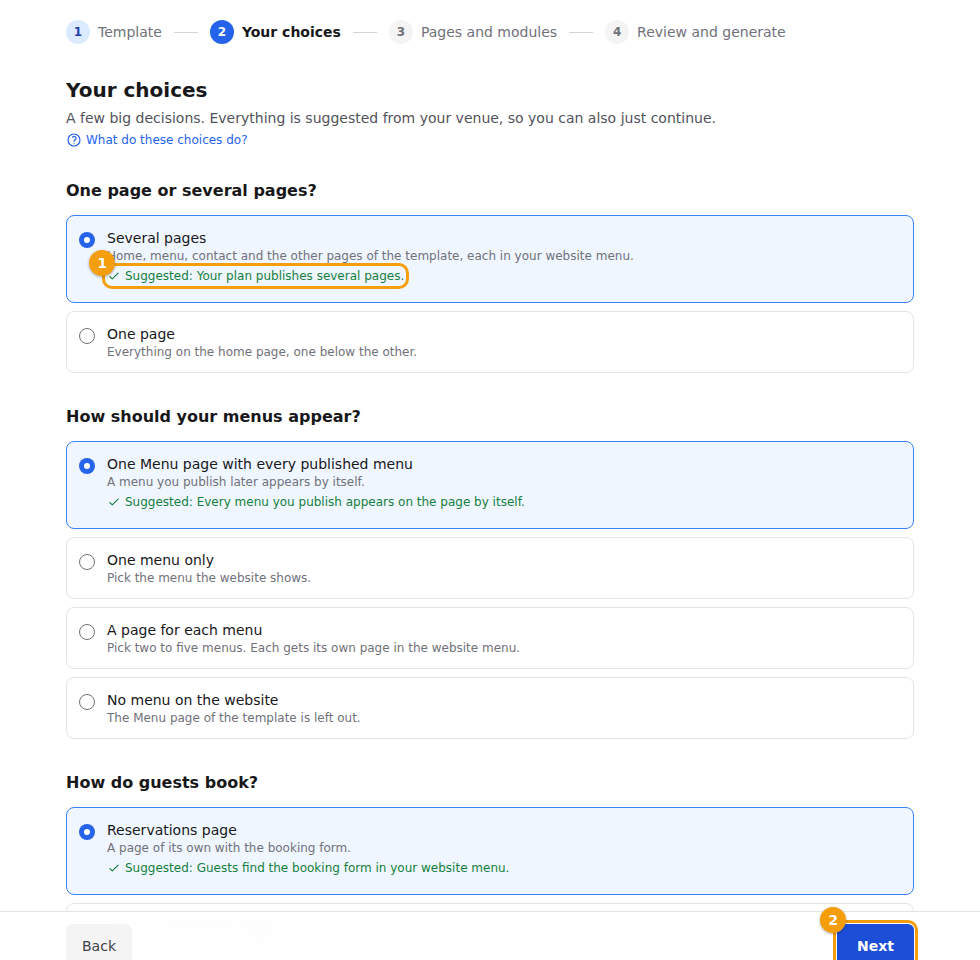
When you choose a template, the editor asks a few big questions before it writes anything to your draft. You only see the questions that apply to your template and your venue, and each one has a Suggested answer with the reason, taken from your own data. So you can also just click Next all the way through and get a sensible website. Nothing is final: everything can be changed afterwards in the editor. See Start from a template.
One page or several pages?
- Several pages — home, menu, contact and the other pages of the template, each in your website menu.
- One page — everything on the home page, one below the other. The pages of the template are folded into it in the same order. A long home page keeps itself short: a few modules that carry less (such as dividers, logos, numbers, team and FAQ) start unticked once the page would get past 14 modules — you see them in the next step and can tick them.
Good to know
Does your plan publish only one page? Then you are not asked: the template is combined into one page for you, because a website with several pages could not be published on your plan. Everything else works the same.
How should your menus appear?
This question appears for the templates that have a menu page.
- One Menu page with every published menu — a menu you publish later appears by itself.
- One menu only — you pick the menu the website shows. A one-menu page uses a list design, because tabs make no sense for a single menu.
- A page for each menu — you pick two to five menus. Each gets its own page in your website menu, named after the menu. This needs a website with several pages and at least two published menus.
- No menu on the website — the Menu page of the template is left out.
Tip
None of your menus published yet? The Menu page stays in, and reads "No menus available." until you publish one. That is fine for a draft: publishing a menu is one click. If you have no menu at all, the question suggests leaving the page out. See Menus.
How do guests book?
- Reservations page (for venues that take enquiries instead of table bookings: Enquiry page) — a page of its own with the form.
- Form on the home page — the form sits under the top banner of the home page, with no page of its own. This is the suggestion for a one-page website.
- Only a button — a "Book a table" banner (or "Enquire"); guests land on your booking page.
- No online booking (or No online enquiries) — no booking page, no booking sections, and the buttons that led to the booking page are removed, so no button promises something your website cannot do. You are only offered this when you take neither bookings nor enquiries, but you can pick it anyway.
List your other locations?
This question appears only when your brand has more than one location.
- No — the website is about this location only.
- A section on the home page — cards with your locations. Suggested for two to five locations.
- A page of its own — a Locations page in your website menu, grouped by city. Suggested from six locations.
Two extras you can tick
Two modules that a template often lacks are offered as rows in the Pages and modules step, marked Added:
- Events page — a list of your events. It is ticked when you have upcoming public events, and unticked, with the reason, when you have none yet. Tick it anyway and the list fills itself when you publish an event.
- Offers on the home page — your current offers. The same rule: ticked when you have a current offer.
Sample text
Some modules — numbers and statistics, prices and packages, the team, the timeline and the FAQ — come with example facts (such as "180+ wines" or "Your Host"). They are marked Sample text, the review step counts them, and you should replace them with your own before you publish. See Edit a section.