Articles in this topic
Guest feedback and reviews
Ask guests for a review the day after their visit, add your own message, send them on to Google or TripAdvisor, and thank them with a voucher.
5 min read
A short review from a guest who has just eaten with you is worth more than any advert. With Guest Feedback switched on, Clava emails your guests the day after their visit, with a link to a short review form. You can add your own message, point happy guests to your pages on Google or TripAdvisor, and thank them with a voucher.
How the review request works
Once a night Clava looks at the table bookings of the day before. For every booking that your team marked as Arrived and that has an email address, it prepares a request and emails the guest a little later.
What the guest receives:
- An email from your venue, with your message and a button, Share Your Feedback.
- A review form behind the button: the stars for the overall rating, a title, a few lines of text, an optional rating for each aspect you ask about (for example food and service) and up to five photos.
- A thank-you page once the form is sent. It shows the review and your buttons for other review sites.
The link works for 7 days. After that the guest sees a page saying the request has expired, with your contact details. Each booking is asked once.
Good to know
Nobody is asked about a visit that took place before you switched this on: Clava only looks at the day before. A booking that is not marked Arrived, a booking without an email address, and the space booking of an event are never asked.
Switch it on
-
In Venue Setup, click Configure on your location, then click Guest Feedback.
-
Switch on Ask guests for feedback after their visit (1).
-
Optional: write your Message to guests (2) and add your Review sites (3) — both are described below.
-
Click Save Guest Feedback Settings. A green message, Changes saved successfully., confirms it.
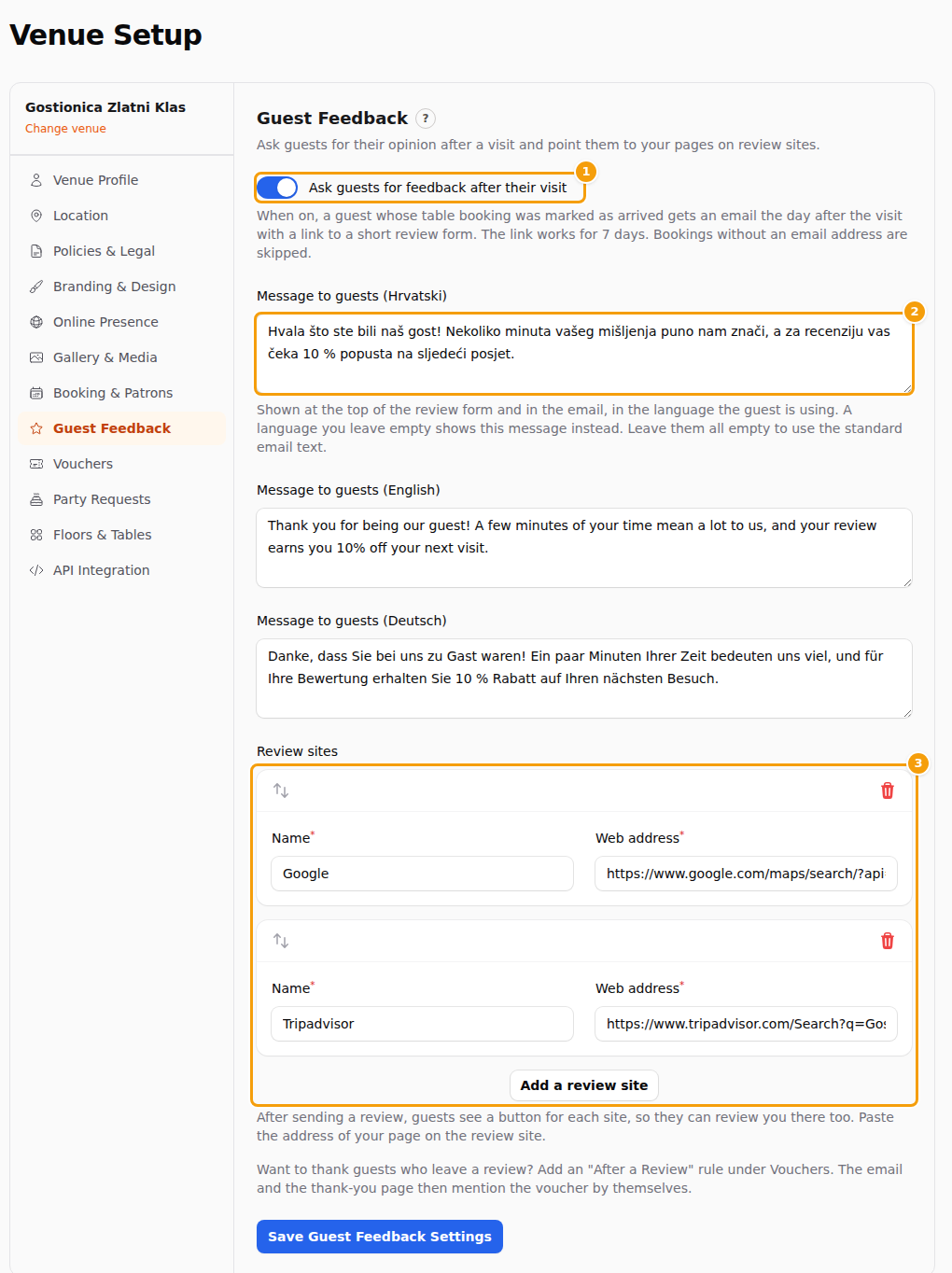
The Guest Feedback tab: the switch (1), your messages (2) and the review sites (3)
Every location has its own settings. If you run two locations, open each one and switch it on where you want it.
Tip
Reviews only come in for visits your team marks as arrived. If your team does not do that yet, see When a visit counts.
Write your own message
The Message to guests is shown at the top of the review form and in the email, exactly as you write it. Use it for a personal line: thank guests for coming, say who reads the reviews, or say what you do with them. Leave it empty and the email uses a standard text, and the form shows no message.
If your location offers several languages (Languages), Guest Feedback shows one box for each of them. Write the message in the main language of your location first, then in the others. A guest reads the message in the language of their email and form; a language you leave empty shows the message in the main language instead.
The language of the email and the form
The email is sent in the language of the booking, which for an online booking is the language the guest was using on your booking page. If the booking has no language, or the location does not offer it, the email is sent in the main language of the location. The button in the email opens the form in the same language. If your location offers several languages, the language buttons at the top of the form let the guest change it.
Everything Clava writes — the email, the form, the thank-you page and the expired page — follows that language. So do your own texts, as far as you have written them in that language: your message, and the names and descriptions of the aspects you ask about (Reviews → Review Criteria, which has a tab for each language of the location). Where a language has no text, the guest reads the main language of the location.
Send guests on to Google or TripAdvisor
A review on your own page is good. A review on Google or TripAdvisor is found by people who have never heard of you. Under Review sites you add one entry for each site you want to point guests to.
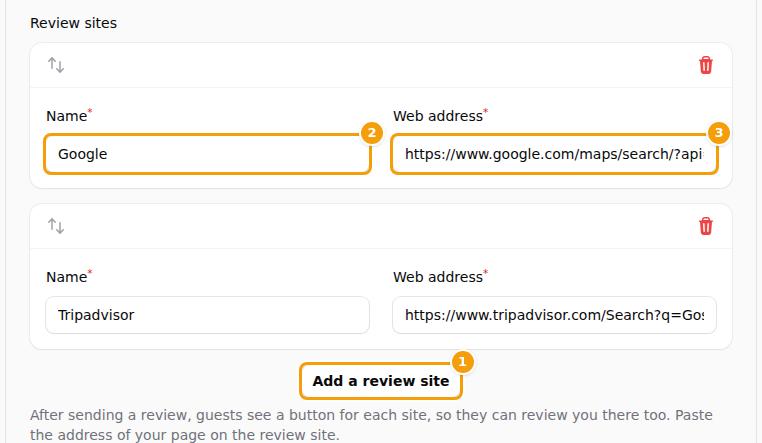
- Click Add a review site (1).
- Type the Name (2) the button should show, for example Google or TripAdvisor.
- Paste the Web address (3) of your page on that site — the page where a guest can write a review, not the home page of the site.
- Click Save Guest Feedback Settings.
The guest then sees a button such as Leave a Review on Google under their thank-you. You can add up to six sites and change their order by dragging them. The same buttons are on the page a guest sees if they open the link again, and on the expired page.
Type the address as you have it: g.page/your-restaurant/review becomes https://g.page/your-restaurant/review when you leave the field. Only addresses that start with http or https are accepted. A red note under the field tells you when an address cannot be used, and nothing is saved until you fix it.
Thank guests with a voucher
Guests are more likely to answer when they know there is something in it for them. Under Vouchers you can add the rule After a Review: whoever sends the form gets a voucher by email, whatever the rating. See Add an automatic voucher rule.
When your location has such a rule, switched on and with a template, the review email and the thank-you page add one line: As a thank you for your review, we will send you a voucher. Without a rule, or with the rule paused, the line is not shown, so you never promise a voucher you do not send. It also needs vouchers switched on for the location.
What happens to the reviews
Every review waits for your approval. You read it and approve or reject it in Reviews → Review Insights, which is part of the Ultimate plan. Only approved reviews count in your averages and can appear in the reviews section of your website.
Good to know
- Switching it off stops new requests. A request that was already prepared overnight may still go out.
- The link belongs to one booking. Once the guest has sent the form, the link shows the review they wrote and cannot be used for a second one.
- Several locations? Each one has its own switch, message and review sites. Use the address of the right page for each location.