Articles in this topic
What Party Management is for
Where your team runs the parties, weddings and company dinners your venue hosts — the menu, the dashboard, the requests and where each task lives.
6 min read
Some guests want more than a table for four: a wedding, a birthday, a company dinner. Party Management is where your team looks after those. A request comes in, you turn it into a party, you agree menu, room and deposit with the host (we call them the organiser), and on the day you have everything on one sheet.
Your own ticketed evenings, such as a wine tasting or a stand-up night, and your meetup series live in the same area but are a different thing, with their own menu entries — see Parties and events below.
Open Party Management
Click the orange button at the top right, next to the bell, and choose Party Management (it turns purple). The button is the area switcher: it lists every area your login may use.
Important
The area only appears for plans that include party management (Pro, Ultimate and the free trial). On other plans there is nothing to switch to. Your plan also limits how many parties can be active at the same time and how many guests one party may have — Clava tells you when you reach a limit.
The menu on the left
| Menu item | What you do there |
|---|---|
| Dashboard | See what needs attention at a glance — below. |
| Create Party | Add a party yourself, for example one agreed by phone — see Create a party. |
| Party Requests | Answer enquiries from your booking page — below. |
| Parties | The list of your clients' parties and everything about each one (a badge shows how many) — see The Party Manager. |
| Events | Your own ticketed evenings — see Events at a glance. |
| Series | Your meetup series with their members and meetups — see Event series. It shows only when event series is switched on and your plan includes it. |
| Menus | The menus you offer for parties and events — see What menus are for. |
| Venue Layouts | The room plans, with tables, for seating guests — see Venue layouts. |
Events are also reachable from Booking Management (the area for bookings): its menu has an Events link that leads here. Events and Series disappear from the menu when you switch them off for the brand or for every location — see Switch events and series off.
The dashboard
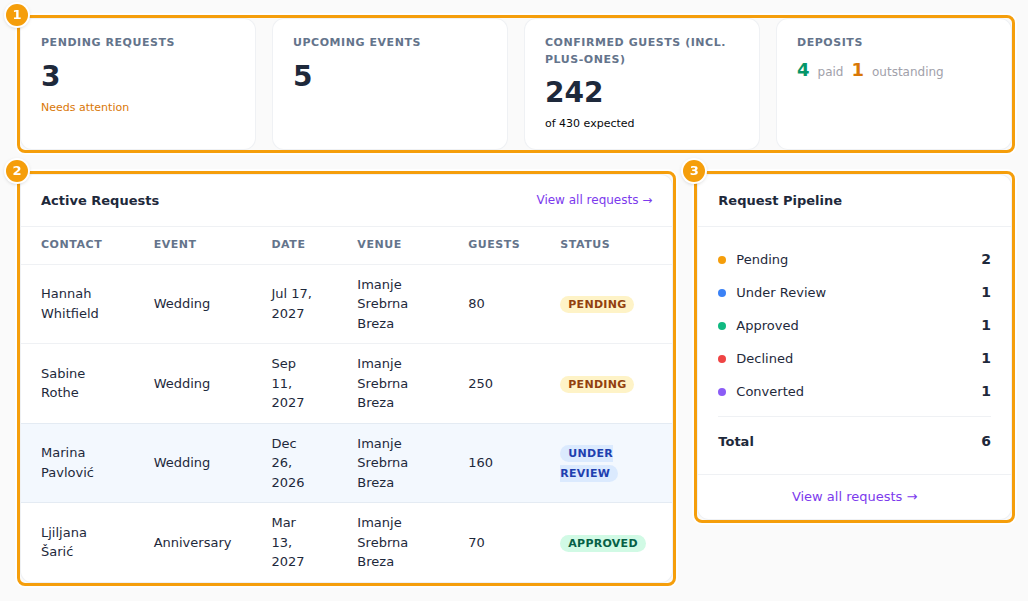
The Dashboard is the first page. Four tiles sit at the top (1):
- Pending requests — new requests nobody has answered yet. Needs attention shows while there are any.
- Upcoming events — parties and events still to come. The meetups of a series are not counted here; they belong to their series. When events are switched off, only your clients' parties are counted.
- Confirmed guests (incl. plus-ones) — how many people have said yes, set against how many were expected (of 430 expected). A guest with a plus-one counts as two people.
- Deposits — how many deposits are paid and how many outstanding.
Below them, Active Requests (2) lists the requests that are still active (not declined or converted), with contact, event type, date, location, number of guests and status; View all requests opens the full list. Request Pipeline (3) counts the requests by status: Pending, Under Review, Approved, Declined and Converted. Lower on the page you find the Event Calendar (days with a party are marked), Recent Activity and Quick Actions with Create Party and View Requests.
Party requests
Party Requests lists the enquiries guests send from the Plan a Party tab of your booking page — see Event and celebration requests for how to switch that on.
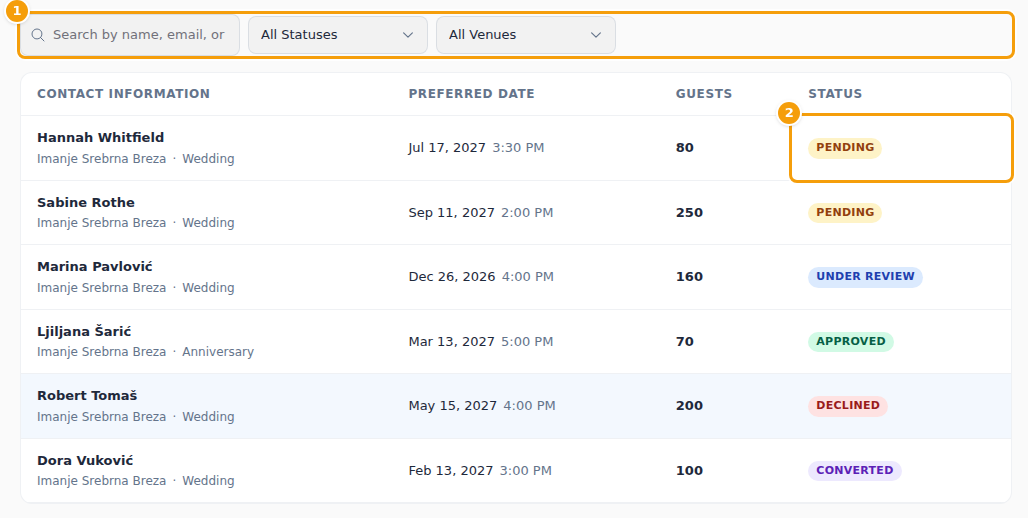
- Use the search box and the two filters (1) to find a request by name, email or type, by status or by location.
- Click a request to open it. You see what the guest wrote, the number of guests and the day's availability.
- Answer it with Set Under Review, Approve & Book or Decline.
Each request has a status (2): Pending when it arrives, Under Review while a colleague looks at it, and then Converted (approved and turned into a party) or Declined. A converted request shows Open in Party Manager, which takes you to the party that was made from it.
The steps of answering a request, what Approve & Book creates and what the guest receives are described under What happens after a request.
The bell in the top bar tells you when a colleague has set a request Under Review. A brand-new request does not ring the bell, so switch on the staff email in the party request settings and look at the list every day.
Parties and events
| A party | An event | A meetup series | |
|---|---|---|---|
| Who hosts | A client — the organiser — who books your venue | Your venue | Your venue, with an organiser who looks after the group |
| Guests | The organiser invites them and collects the answers | Guests reserve tickets on the event's page, or sign up for free | Members, who book the series' meetups |
| Where you manage it | Parties | Events | Series |
| The organiser's own tools | Yes — guest list, menus, seating, questions, shop | Your team uses them | Yes — a smaller organiser area for the series |
A party appears only under Parties. An event is changed under Events, and a meetup under Series, on the page of its series — see Event series.
What next
- Create a party when a client has agreed something with you.
- The Party Manager for everything about one party.
- Venue layouts to draw your rooms once and seat guests in them.
- Events at a glance for your own evenings.