Articles in this topic
Hiring rooms to a series organiser
Let the organiser of a series book your rooms for their meetups at your hourly rates — how to mark the rooms and their prices, which rooms a series may book, what the organiser sees, when a request waits for your approval and how to approve or decline it.
8 min read
When the organiser of a series plans a meetup, the meetup needs a room. With space hire the organiser books it themselves, from the rooms you have offered to their series, at your hourly rates. They see the price before they save. The meetup is confirmed on the spot, or it waits for you when it starts soon. Nothing is charged yet: the price is an estimate.
Space hire is for the organiser only. A meetup you create yourself in the Events app, and any other event, works as before.
Mark the rooms and their prices
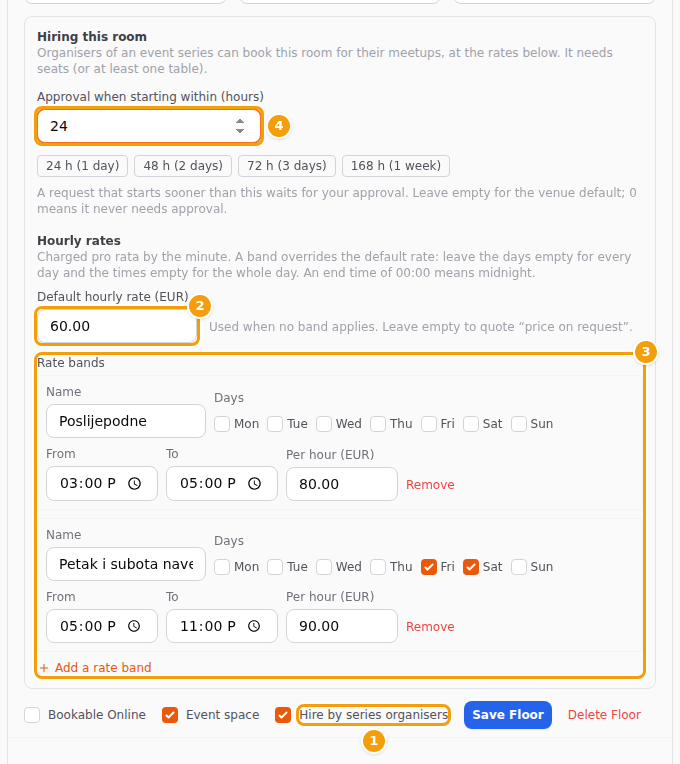
Open Venue Setup, go to your floors and open one with Edit Floor Details. Under Hiring this room:
- Tick Hire by series organisers. The room needs seats, or at least one table; a room that holds nobody cannot be hired.
- Enter the Default hourly rate. A room without a rate is hired at price on request: the organiser can still book it, but the estimate shows no total.
- Add rate bands for other prices: a name, the days, a start and an end time and the price per hour. Leave the days empty for every day and the times empty for the whole day; an end of 00:00 means midnight. A band wins over the default rate. If bands overlap, the narrower one is used, then the one higher in the list.
- Set Approval when starting within (hours) (below), then save the floor.
The price is charged pro rata by the minute and split where a band starts or ends, so a meetup from 16:00 to 19:00 can be one hour at the afternoon rate and two at the default. There is no tax and no minimum in the estimate.
Good to know
When event series is switched off for a location (or for the whole brand), that location's Hiring this room fields are not shown and its rooms no longer appear under Rooms the organiser can book. What you entered is kept and returns when you switch event series on again. See Switch events and series off.
Approval for short notice
A request that starts far ahead is confirmed automatically. A request that starts sooner than the approval hours waits for you, so a room is not taken from under your team at the last minute.
- The default for the whole venue is above the floors (Space hire: approval when starting within (hours), with Save). Empty or 0 means a request never needs approval.
- Each room can have its own value in Approval when starting within (hours): empty follows the venue default, 0 means this room never needs approval, and the presets give 1 day, 2 days, 3 days or 1 week.
- When a meetup uses several rooms, the strictest one counts. A request that starts exactly that many hours away needs no approval.
Give a series its rooms
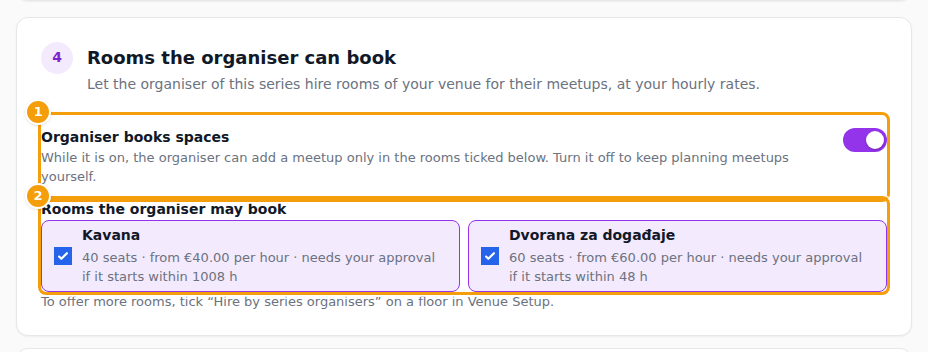
Open the series (the Series entry in the sidebar), go to Settings and find Rooms the organiser can book.
- Switch on Organiser books spaces.
- Tick the rooms the organiser may book. Each shows its seats, from … per hour and whether it needs your approval.
- Save the series.
The list holds only rooms you marked as hireable. To offer more rooms, mark them in Venue Setup as described above.
Important
Until a series has at least one room ticked, its organiser cannot add a meetup or move one. They read that the venue has not yet set which spaces they may book. Meetups that already exist stay as they are. Switch the option off to plan the series' meetups yourself again.
What the organiser sees
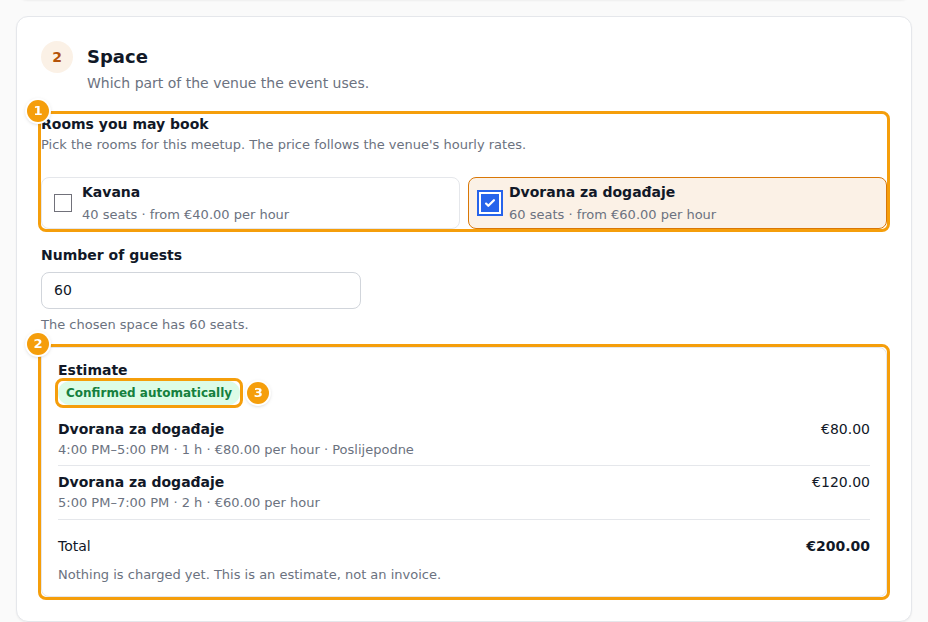
In the organiser's area the meetup form shows Rooms you may book instead of the choice between the whole venue and some floors. The organiser picks a date, a time and one or more rooms, and the form shows:
- the estimate: a line per room and rate with the hours, and a Total. If a part of the time has no price the total reads Price on request;
- a badge Confirmed automatically or Needs the venue's approval (starts within 48 h);
- problems next to the field they belong to, for example that the venue is closed that day, that the time is outside the opening hours, has already begun, or that a room is taken at that time. A meetup must start and end on the same day, and the capacity cannot be more than the rooms seat.
When the organiser saves, a confirmed meetup is in place at once. A request that needs approval holds the rooms for the organiser, and the meetup stays hidden (it is not listed, cannot be booked and cannot be announced) until you decide. While it waits, an amber badge Waiting for the venue replaces the status in the meetup lists and at the top of the meetup, and the Visibility card of the meetup is disabled until the room is approved (see Draft and published).
If the organiser moves a meetup or changes its rooms, it is checked again: a confirmed one may now need your approval, and one that waited may now be confirmed. A meetup you created yourself cannot be moved by the organiser; they read that they should ask the venue.
Approve or decline a request
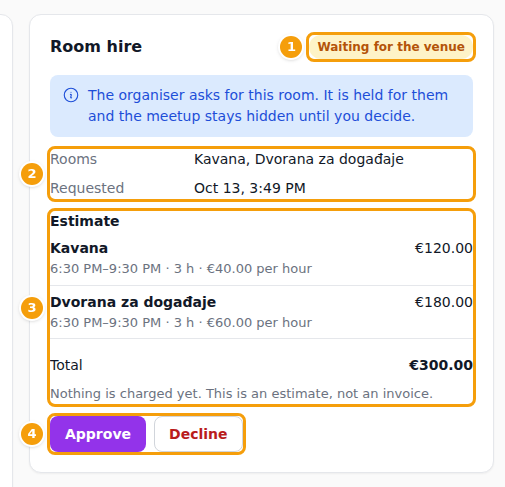
A request reaches you in three ways: a notification Room request from a series organiser with the button Review the request (for admins and editors of the brand), an email to your venue's contact address, and the meetup itself in the Events app under Series. Open the meetup: its Overview tab has the Room hire card with the status, the rooms, the estimate, when it was requested and, once decided, who decided and the message.
- Approve asks first (Approve this room request?). The room is confirmed, the meetup is shown and the organiser is told by email.
- Decline opens a box for a Message to the organiser (optional, for example which time would suit you). The meetup is cancelled, the room is free again and the organiser is told by email with your message.
Only admins and editors can decide; readers see the card and nothing more. A request cannot be decided once the meetup has started. Changes you make yourself to a meetup with a hire leave the status of the request as it is; the estimate is not recalculated.
The emails
Three email texts belong to space hire, and you can change them like the others in your email templates: Space request (to the venue) (to your venue's contact address when a request waits), Space confirmed (to the organiser, automatically or after your approval) and Space not available (to the organiser, with your message).