Articles in this topic
Member profiles
What a member tells about themselves — name, headline, photo, links and your own questions — what other members see in the directory, and how to set up the questions with a ready-made set.
7 min read
Every member can fill in a profile. You decide which questions they answer, and every member decides whether other members see them. Staff see all of it; other members see only what the member allows.
What a member fills in
On the membership card of the series website a member opens Edit profile and can set:
- a Photo (JPEG, PNG or WebP up to 5 MB, and Remove my photo);
- the Name shown to other members; without one, others see the first name and the initial, such as Ana K.;
- a Headline and About you;
- Links to LinkedIn, GitHub and a website (web addresses that start with
https://); - the answers to your questions;
- Show me in the member directory, which is off until the member switches it on;
- Email me when a new meetup is announced, which is on from the start.
The photo is made smaller and its metadata, including location data, is removed. It is stored privately, never as a public file.
Who sees what
| Who | Sees |
|---|---|
| Staff and the organiser | Everything, including the about text and every photo. |
| A member | Their own profile. Other members only if they chose to be listed, and then only the photo, name, headline, the answers you marked as visible and the links. |
| A visitor or an applicant | Nothing. |
Email address and phone number are never shown to other members, and neither is the about text.
On the Members page of the series website a signed-in member finds the directory of everyone who is listed, with a search box. The "Who is coming" lists show listed members by name and everyone else as a number, such as + 3 more.
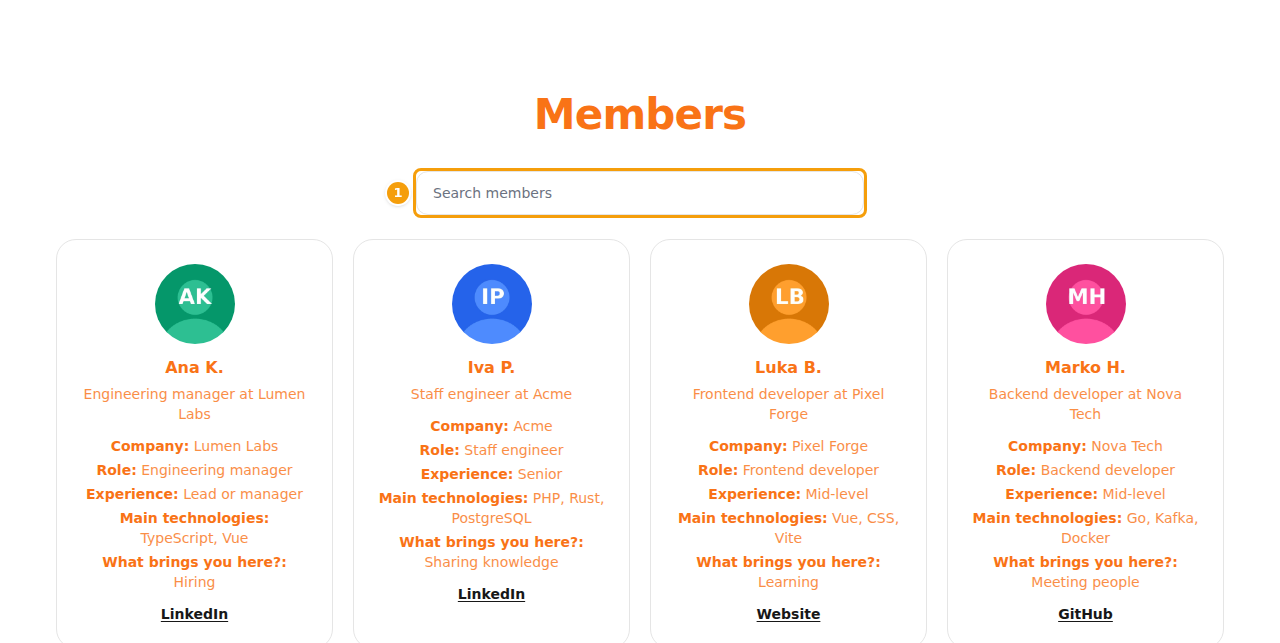
A member who leaves or whose application is declined is no longer listed. Their profile and photo are kept, hidden, until they come back; Remove deletes them for good.
Questions of your own
Besides the basics you can ask your members questions, for example about their company or experience. Open the series, choose the Settings tab and scroll to Member profile.
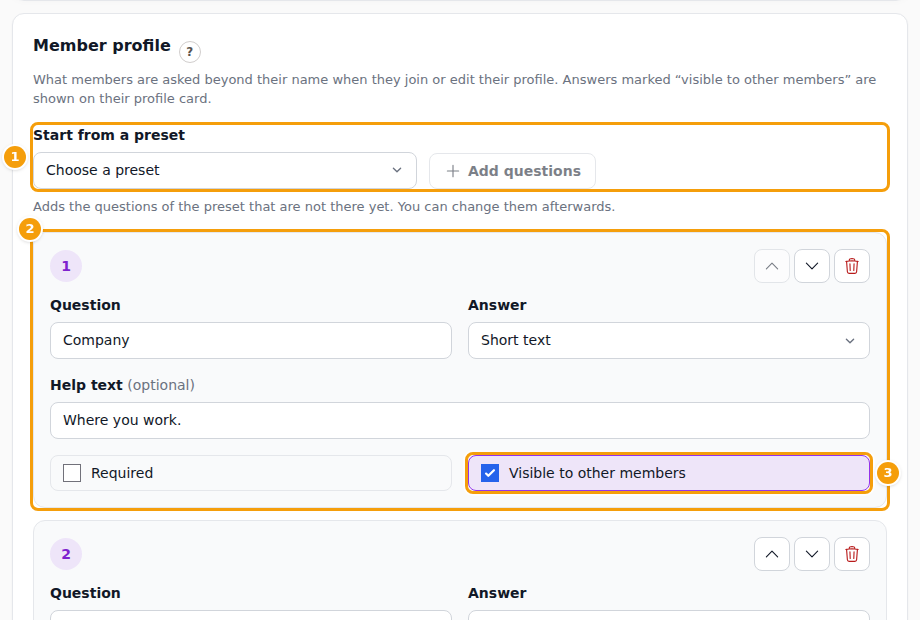
- Start from a preset (1) and Add questions adds a ready-made set, see below. It adds only the questions that are not there yet, and you can change them afterwards. Save or discard your other changes first.
- Every question (2) has its Question, the type of Answer — Short text, Choose from a list, Choose one option, Yes or no or Date — and a Help text. For the two choice types write the Choices, one per line.
- Required means a member must answer when they save their profile.
- Visible to other members (3) puts the answer on the member's directory card. Without it only staff see it.
- The arrows move a question up or down and the bin deletes it. A series can ask at most 20 questions.
- Save questions saves them, Discard changes goes back. Deleting a question also deletes the answers members gave to it; Clava asks before it does.
Ready-made sets
| Preset | Questions |
|---|---|
| Software and IT | Company, Role, Experience, Main technologies, What brings you here? |
| Healthcare | Hospital or organisation, Profession, Specialty, Career stage, Topics you want to discuss |
| Business | Company, Job title, Industry, Company size, What are you looking for? |
| General | Company or organisation, Role or occupation, What would you like to get from the meetups? |
The questions come in English, Croatian and German, and none of them is required. All of them are visible to other members until you change that.
What staff see
In the Members tab click a member's name to open their profile under the row.
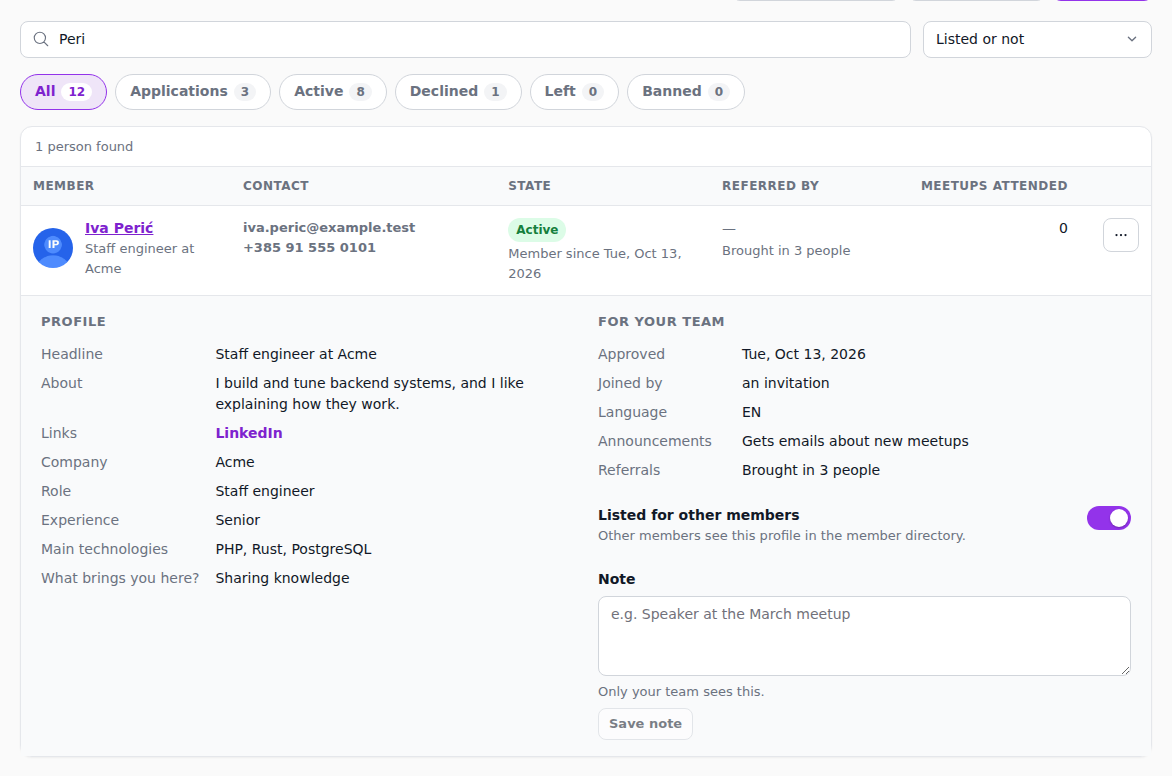
On the left is the Profile: headline, about text, links and the answers. On the right is For your team: when the person applied and was approved, Joined by (the application form, an invitation, a list import or your team), language, whether they get announcements, referrals, and the switch Listed for other members, which you can turn on or off for them. Under it is a Note that only your team sees; write it and click Save note. A message that the person added when applying is kept as this note.