Articles in this topic
Change, move or cancel a booking
Edit a booking, move it to another day, time or area, mark it Late, Used, Canceled or No Show, and delete it — on the Booking Board.
6 min read
Plans change: a guest comes an hour later, brings two more friends, or doesn't show up at all. Everything below happens on the Booking Board of your location — see The Booking Board. For locations that seat guests at tables, see The restaurant views.
Edit a booking
- Click the booking's card. The window Edit Booking opens with the booking's details.
- Change what you need — the guest's contact details, the date, time, number of guests, area, status, offer or notes.
- Click Save. A green message Booking updated successfully appears and the board shows the new details.
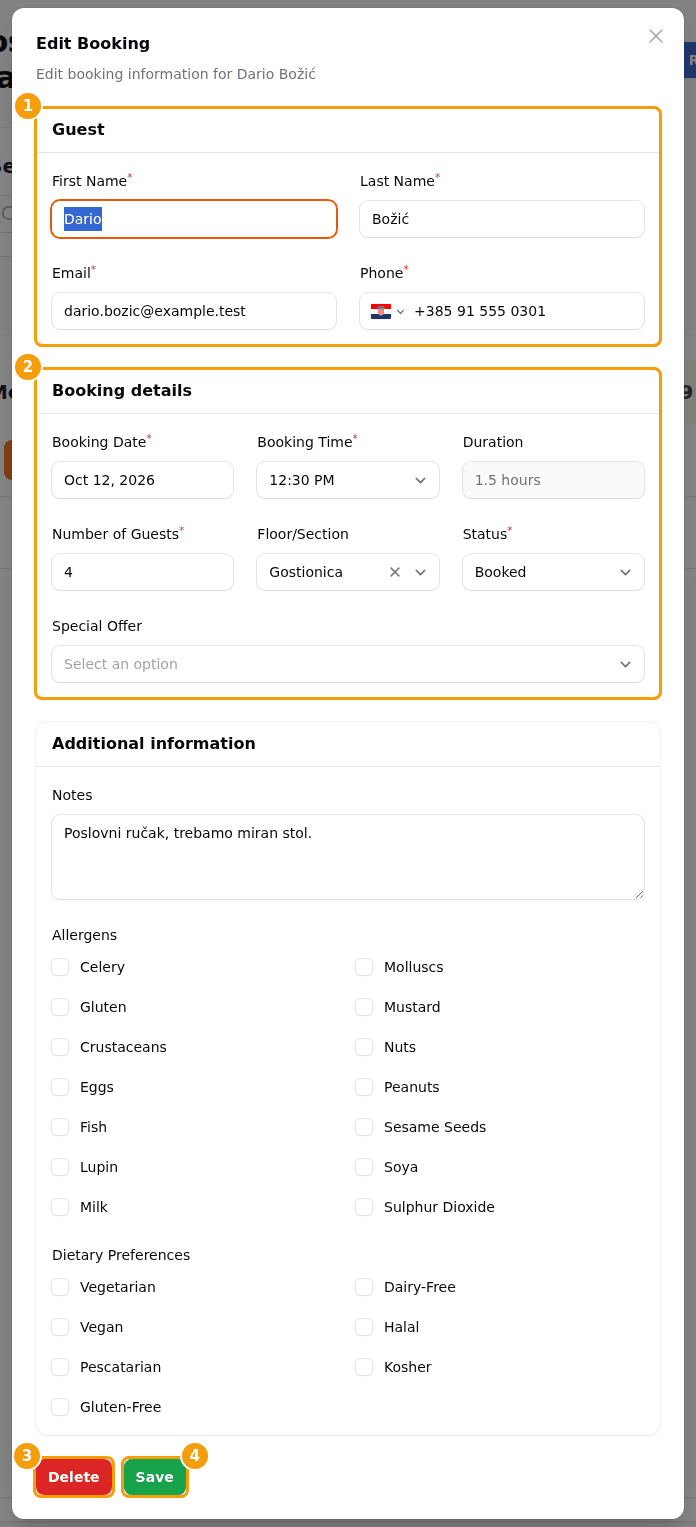
The line Duration is for information only; you can't change it here. If the guest entered a voucher when booking, it is shown in the window as well, but you can't change it.
Move a booking
A booking is moved by changing its Booking Date, Booking Time or Floor/Section in the same window, and saving.
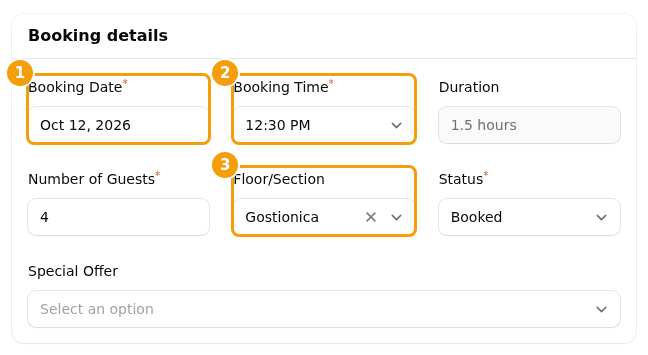
- The Booking Time list holds the times that are free on the chosen day for the number of guests, plus the booking's own time. Change the date or the number of guests and the list is refreshed.
- If the list is empty for the day you chose, nothing is free that day for this group size. Choose another day, or add a manual booking for the new day and set the old booking to Canceled.
- A booking can be moved to another day of the same location only. To move a guest to another location, add a new booking there and cancel the old one.
Good to know
Moving a booking doesn't send the guest anything. Tell them yourself, or write to them under Messages.
Change the status
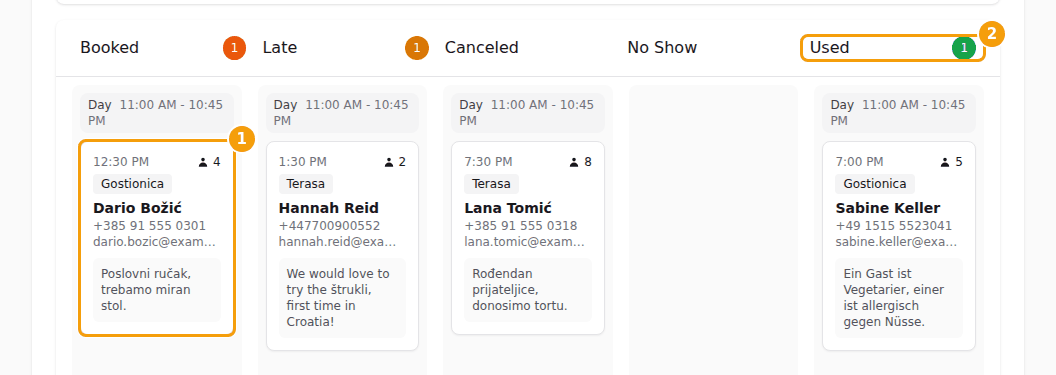
The status tells the team where the guest is: Booked, Late, Canceled, No Show or Used. There are two ways to change it.
- Drag the card. On the board, drag the card to another column, for example from Booked to Used when the guest arrives. A green message tells you the new status.
- Use the list. Open the booking, choose another value in the Status list and click Save.
| Status | Use it when |
|---|---|
| Booked | The guest is expected. |
| Late | The guest called to say they are late. The seats stay reserved. |
| Canceled | The booking won't happen. The seats are free again. |
| No Show | The guest didn't come. The seats are free again. |
| Used | The guest has arrived. |
Good to know about the statuses:
- Used is the visit that counts for automatic vouchers. A guest who gets a reward after the third visit only moves forward when you mark the booking Used.
- A voucher the guest entered on the booking is given back when you set Canceled or No Show. If you move the booking back to an active status, the voucher is claimed again as long as it still applies.
- Canceled and No Show bookings stay in their columns, so you can still see what happened. They are not counted in the day's two counters, but they count in the cancellation and no-show rates on the dashboard.
- A guest can cancel on their own with the link in their confirmation email. The booking then moves to Canceled and the reason, if they gave one, appears under Messages.
Delete a booking
Delete is for a booking entered by mistake, such as a test or a double entry. Open the booking and click Delete.
Careful
Delete works at once. Clava doesn't ask "Are you sure?" and you can't get the booking back from the board. For a booking that was real, use Canceled or No Show instead — then the numbers on the dashboard stay true.
Party and event bookings
- A purple Party label on a card means the booking belongs to a party. Its guest list, menu and deposit are looked after in Party Management; here you only see a summary when you hold the pointer over the label.
- A booking that holds the space for a venue event can't be changed or moved on the board. Clava tells you to change or cancel the event on the Events page, which also moves the space.