Articles in this topic
The Booking Board
The day's bookings at a location that counts seats per area — the buttons at the top, finding a booking, the floor tabs, the five columns and what every card shows.
7 min read
The Booking Board is the day's list of bookings for a location that counts seats per room or area — a café, a bar, a terrace, a restaurant that doesn't give out table numbers. Every booking is a card, and the cards sit in columns by status. It is meant to stay open on a screen during service.
Open the board
- Sign in and make sure you are in Booking Management (the orange button at the top right).
- In the menu on the left, under Active Venues, click the name of your location.
The board opens on today. A location that seats guests at tables has no board — it has the restaurant views instead.
The buttons at the top
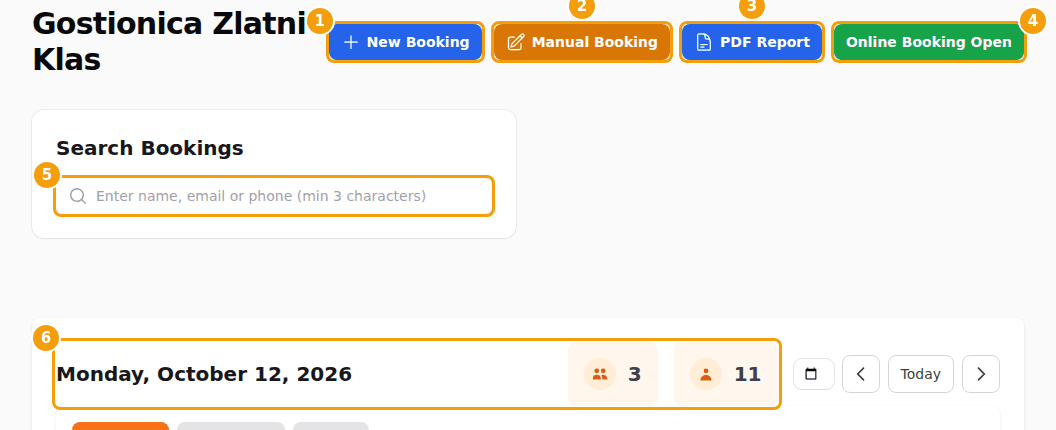
- (1) New Booking — adds a booking the way a guest would book: only times that are free are offered. See Add a booking.
- (2) Manual Booking — adds a booking that ignores the seat limits, for overflow, VIPs and events. See Manual booking.
- (3) PDF Report — opens a printable list of the day in a new browser tab. It has one section for each opening period of that day (for example Lunch and Dinner) with the number of guests, and a table with time, name, email, phone, guests and status. Under a booking it also lists its voucher, offer, allergens, dietary preferences and notes. The report is for the day shown on the board.
- (4) Online Booking Open / Online Booking Closed — see Pause online bookings.
Pause online bookings
The button at the far right is a switch. Green Online Booking Open means guests can book online; red Online Booking Closed means they can't. One click changes it at once — there is no question first — and a message tells you what happened.
While it is closed, a guest who asks for a day sees no times and gets a message that this location doesn't take table bookings online. Your team can still add bookings on the board, and bookings that already exist stay as they are.
Good to know
The switch is the same one as Online Booking in the booking calendar. It works for the whole calendar, so a second location that shares the calendar is closed too. Read about it in Booking rules.
Good to know
Readers only look. A reader sees the cards and can open a booking to read it, but New Booking and Manual Booking are hidden, the Online Booking Open / Closed switch is greyed out (it says Your access level (Reader) can only view.) and cards cannot be moved. See Team roles.
Find a booking
The Search Bookings box (5 in the picture above) finds bookings by name, email address or phone number. Type at least 3 characters. A window opens with up to 20 bookings: the guest, contact details, number of guests, date and time and status.
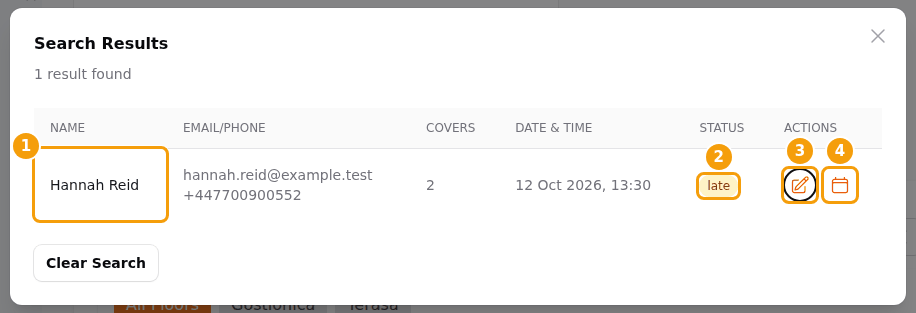
- The pencil (3) opens the booking so you can change it — see Change a booking.
- The calendar icon (4) takes the board to the day of that booking.
The search covers your whole business, not only the location you are looking at.
Choose a day and an area
The big date at the top (6 in the first picture) is the day you are looking at.
- Use the arrows to go one day back or forward, Today to come back, and the small calendar button to pick any day.
- The two counters next to the date show the number of bookings and the number of guests of the day. Canceled and no-show bookings are not counted.
- The tabs under it (2 in the picture of the columns below) filter by area. All Floors shows everything; the other tabs are the floors or areas of this location, for example Gostionica and Terasa. Clava remembers your choice in this browser.
The five columns
Each column is a status, with the number of cards in it.
| Column | What it means |
|---|---|
| Booked | The guest is expected and has not arrived yet. New bookings start here. |
| Late | The guest is running late but is still coming. The seats stay reserved. |
| Canceled | The booking was canceled — by the guest or by your team. It no longer holds seats. |
| No Show | The guest never came. It no longer holds seats. |
| Used | The guest has arrived. Elsewhere in Clava this is called Arrived. It counts as a visit for automatic vouchers. |
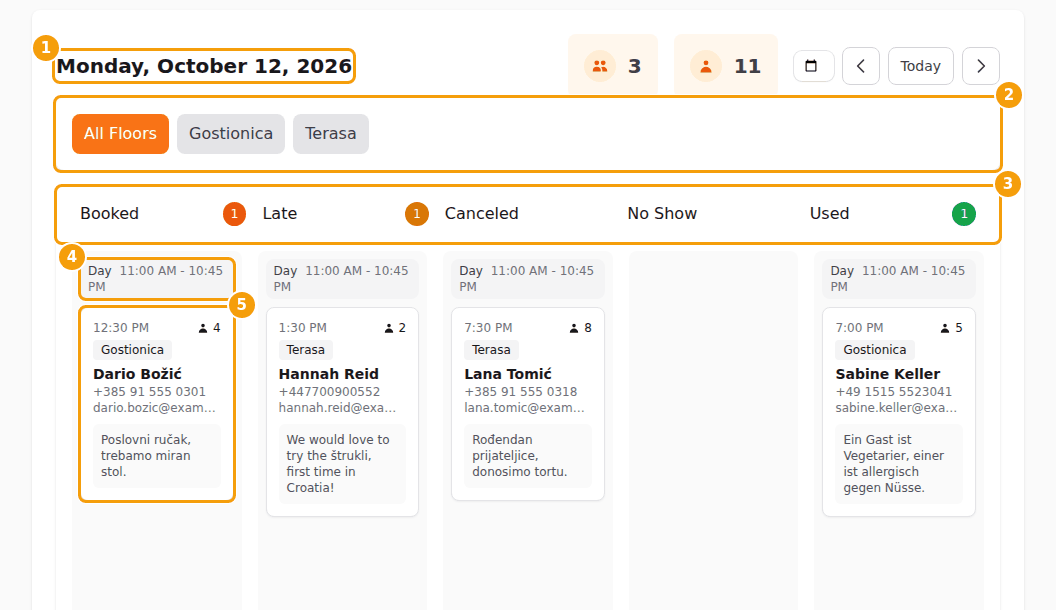
Inside a column the cards are grouped under the opening period they start in. The group's title shows the period and its hours, for example Day 11:00 AM - 10:45 PM, or Lunch and Dinner when you have two periods (4). A booking that starts outside every opening period goes into a group called Outside opening hours — typical for manual bookings.
To change a booking's status, drag its card to another column. See Change a booking.
What a card shows
Click a card to open the booking. Every card shows:
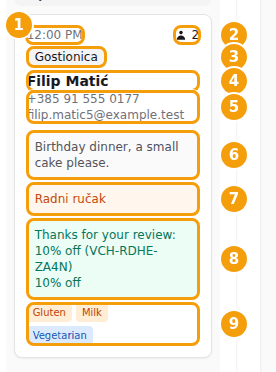
- (1) The time of the booking, and (2) the number of guests.
- (3) The floor or area the guest sits in.
- (4) The guest's name, and (5) their phone and email. Tap the phone number to call.
- (6) The guest's note, shortened if it is long.
- (7) A blue box with the offer the guest chose.
- (8) A green box with the voucher the guest entered: its name, code and what it gives. A grey, crossed-out voucher was given back, for example because the booking was canceled.
- (9) Orange labels for allergens and blue labels for dietary preferences — they only appear if your calendar asks guests for them.
Two more things can appear:
- A purple Party label means the booking belongs to a party or event. Hold the pointer over it to see the party's title, how many guests have confirmed, the deposit status, whether a menu is assigned and the contact's email.
- Bookings that hold the space for a venue event can't be changed here. Clava tells you to change them with the event on the Events page.