Articles in this topic
Booking Management at a glance
Where your team handles bookings every day — the three areas of Clava, the menu on the left, the Booking Dashboard with today's numbers, and the box for checking vouchers.
5 min read
Booking Management is the part of Clava your team uses all day: who is coming, when, how many, and what has changed since this morning. Editors and readers land here when they sign in. Administrators land in Configuration and open Booking Management from the switcher.
The three areas
Clava has three areas for your team. The orange button at the top right of every screen shows the area you are in. Click it to switch.
| Area | What it is for | Who sees it |
|---|---|---|
| Booking Management | The daily work: today's bookings, the booking board, the restaurant views and messages. | Everyone on the team |
| Configuration | Setting up the business: locations, booking calendars, menus, offers, emails, website, plan. | Administrators — see Team roles |
| Party Management | Events and celebrations: events, party requests and parties. | Everyone on the team, if your plan includes parties |
If you work for more than one business, pick the business at the top of the screen. Everything on these pages then shows that business only.
The menu on the left
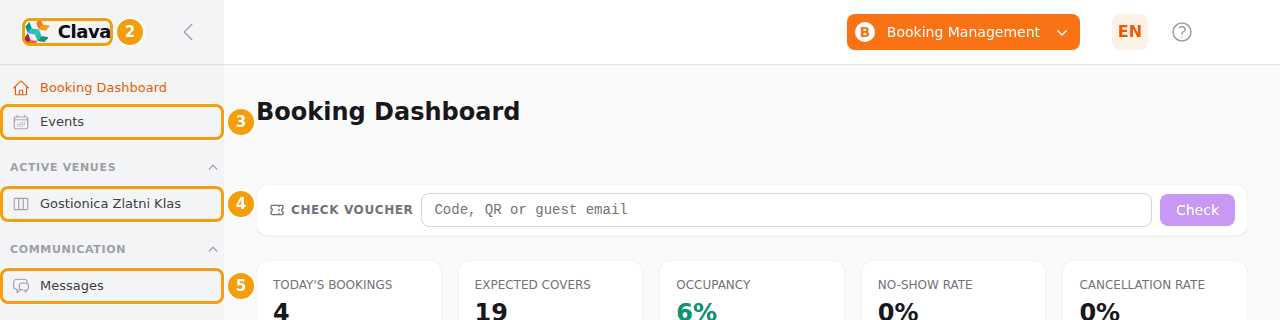
- (1) The area button — see above.
- (2) Booking Dashboard — today's numbers for all your locations. See below.
- (3) Events — opens the events of your location in Party Management: events, tickets and check-in.
- (4) Active Venues — the entries for your locations. What opens depends on how the location's booking calendar counts guests: a Booking Board for locations that count seats per area (see The Booking Board), or the daily view and the Floor Dashboard for locations that seat guests at tables (see The restaurant views).
- (5) Messages — conversations with guests about their bookings. See Messages from guests.
Good to know
Not sure which kind of location you have? Look at what the entry opens. A location with two entries — its name and its name followed by Floor Dashboard — seats guests at tables.
The Booking Dashboard
Click Booking Dashboard for a quick look at the whole business. The numbers cover all your locations together and refresh by themselves every minute.
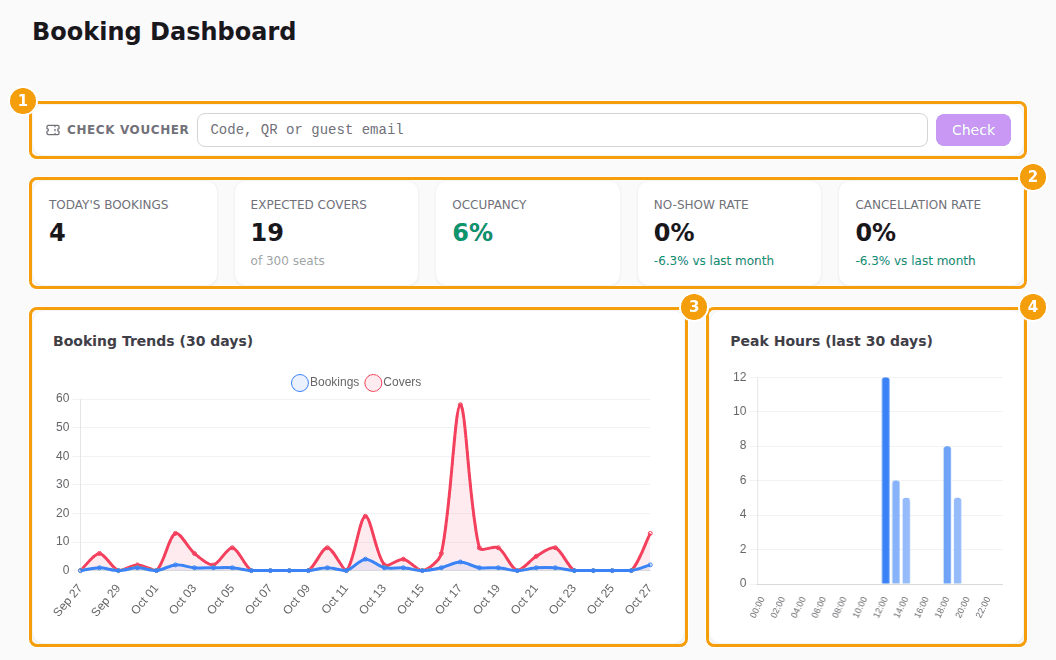
The five tiles at the top (2):
| Tile | What it shows |
|---|---|
| Today's Bookings | How many bookings there are today. Canceled ones are not counted. |
| Expected Covers | How many guests are expected today, and the total number of seats at your locations ("of 300 seats"). |
| Occupancy | Today's guests as a share of all seats. |
| No-Show Rate | The share of this month's bookings marked No Show. The small line compares it with last month. |
| Cancellation Rate | The same for Canceled bookings. |
Below the tiles:
- Booking Trends (3) — bookings and guests per day, from 15 days ago to 15 days ahead.
- Peak Hours (4) — which hours of the day were busiest over the last 30 days.
- Status Breakdown — this month's bookings by status (Booked, Used, Cancelled, No Show, Late).
- Monthly Performance — the last three months side by side: bookings, guests, average party size, cancellations, no-shows and how many bookings were completed.
- Upcoming Today — the next bookings of today that are still Booked (up to ten), with a Give voucher link where vouchers are switched on.
- This Week — one tile per day from Monday to Sunday with the number of bookings and guests. Today is highlighted.
- Search Bookings — type at least 3 letters of a name, an email address or a phone number to find a booking at any of your locations. A phone number can be written the way you would dial it.
Tip
The numbers are for planning, not for the till. A booking counts as soon as it exists, whether the guest booked online or your team added it.
Good to know
Readers only look. If your role is Reader, a one-line note on the dashboard says Your access level (Reader) can only view. and the buttons that would change something are hidden. See Team roles.
Check a voucher
If your location accepts voucher codes, a Check voucher box sits above the tiles. Staff who are editors or administrators see it; readers don't.

- Click the field (2) and type or scan the code. A scanner that types like a keyboard works: it types the code and presses Enter.
- Press Check (3). A small window tells you whether the voucher is Valid and shows what it is worth.
- Follow what the window offers, for example Honour to give the voucher to the guest and use it up.
To see all the vouchers of one guest, type the guest's email address instead of a code. If you have several locations, choose the location next to the field first.
Important
Honour uses the voucher up. Press it only when the guest really gets what the voucher promises.
All the answers and what to do at the table: Vouchers at the table. How vouchers are set up and when guests get them: Vouchers at a location.
Several locations
If your business has several locations, the dashboard adds them all up, and Active Venues lists your locations. Open the entry of the location you are working at before you add or change bookings.