Articles in this topic
Make a voucher
Make a promo code, a code for one guest or a gift card step by step — type, texts in each language, discount, limits, validity, locations and look — and how to template, edit, pause or delete it later.
8 min read
A voucher is made in one form with five tabs. This article goes through them from left to right. At the end you find how to change, pause and delete a voucher.
Start a new voucher
- In the menu on the left, under Marketing, click Vouchers. See What vouchers are for if you can't find it.
- Click + New. A window Create Voucher opens with the tabs Basics, Content & Translations, Discount & Rules, Venues and Design.
- Fill in what you need, then click Create Voucher at the top right.
The button stays grey until the voucher has a name in the main language. An orange line at the top says which tab to open: Enter a name in the HR tab (Content & Translations) to save. Tabs with a mistake are marked in red.
Good to know
If your plan has no room for another voucher, or does not include the type you want, the form tells you. See Your plan.
Basics: type, who, code
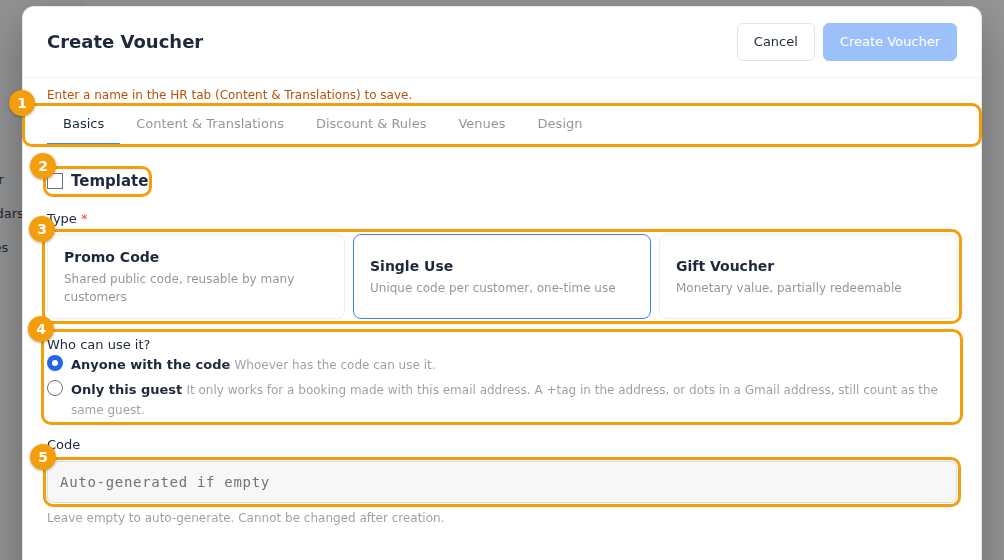
- Template (2) — leave it off for an ordinary voucher. See Templates below.
- Type (3) — Promo Code (shared, many guests), Single Use (one use) or Gift Voucher (a balance). The type can't be changed after you save.
- Who can use it? (4) — only for Single Use vouchers and gift cards. Anyone with the code works for whoever has it. Only this guest asks for the guest's email: the voucher then only works for a booking made with that address. A +tag in the address, or dots in a Gmail address, still count as the same guest. Once the voucher has been used, this can't be changed any more.
- Code (5) — leave it empty and Clava makes one, like VCH-Y9BB-W7V9, from letters and digits that are easy to read out (no 0, O, 1, I or L). Or type your own, such as VIKEND10. A code can't be changed after you save. Guests can type it in capitals or small letters, with or without spaces and dashes. Two codes that differ only in that can't exist, and a code that is taken — even by a deleted voucher — gets the answer This code is not available.
Content & Translations: the words
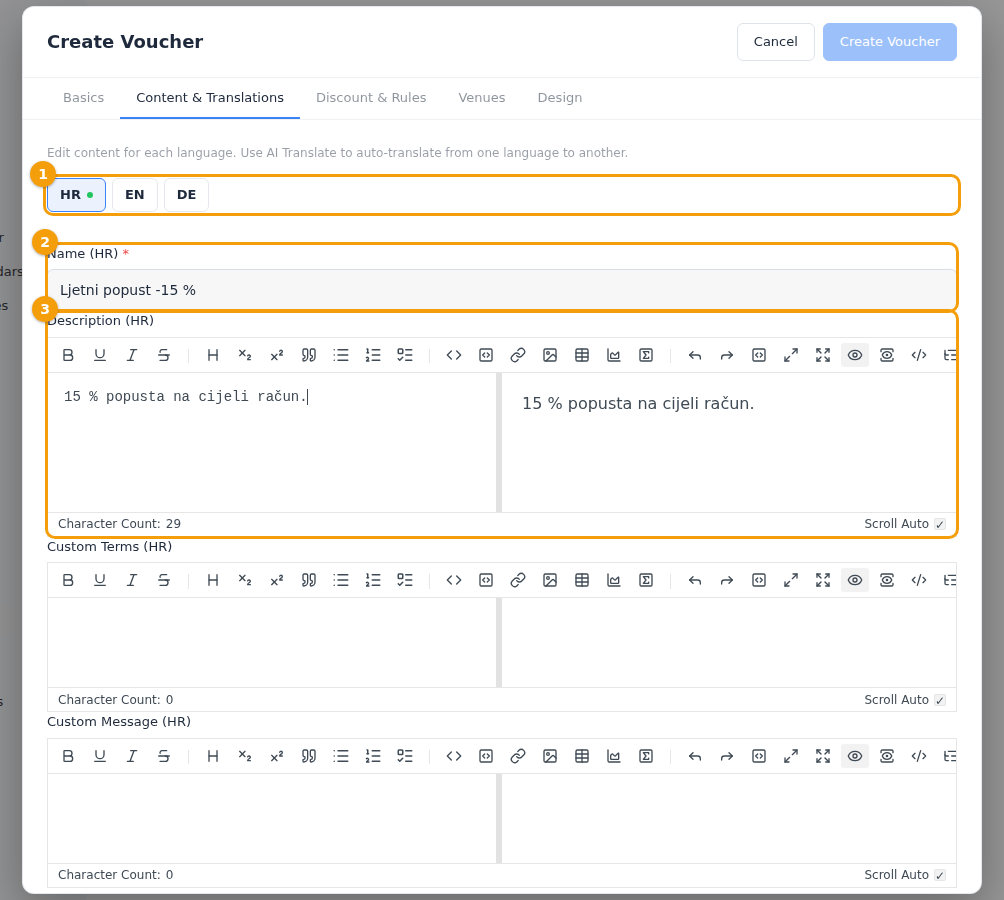
Here you write what guests read — on the voucher page, on the printed voucher and when they type the code.
- The language tabs (1) are the languages of your locations. The first one is your main language.
- Name (2) — the only required field. It is required in the main language. Make it clear: Weekend brunch -10%.
- Description (3) — a few words about what the voucher gives and when. You can use simple formatting.
- Custom Terms and Custom Message — small print and a friendly line for the printed voucher and the voucher page.
- For a Free Add-on there is also Add-on Description: what the guest gets, for example A coffee of your choice.
The other languages are optional. A language you leave empty shows the text of the main language instead. If you do write something in another language, give it a name too.
After the voucher has been saved, Edit adds two helpers on this tab: AI Translate (choose From and To, then Translate) and Grammar Check. They send the saved text of the voucher to an AI service; they work on the saved text, so save your changes first.
Discount & Rules: what it gives and when
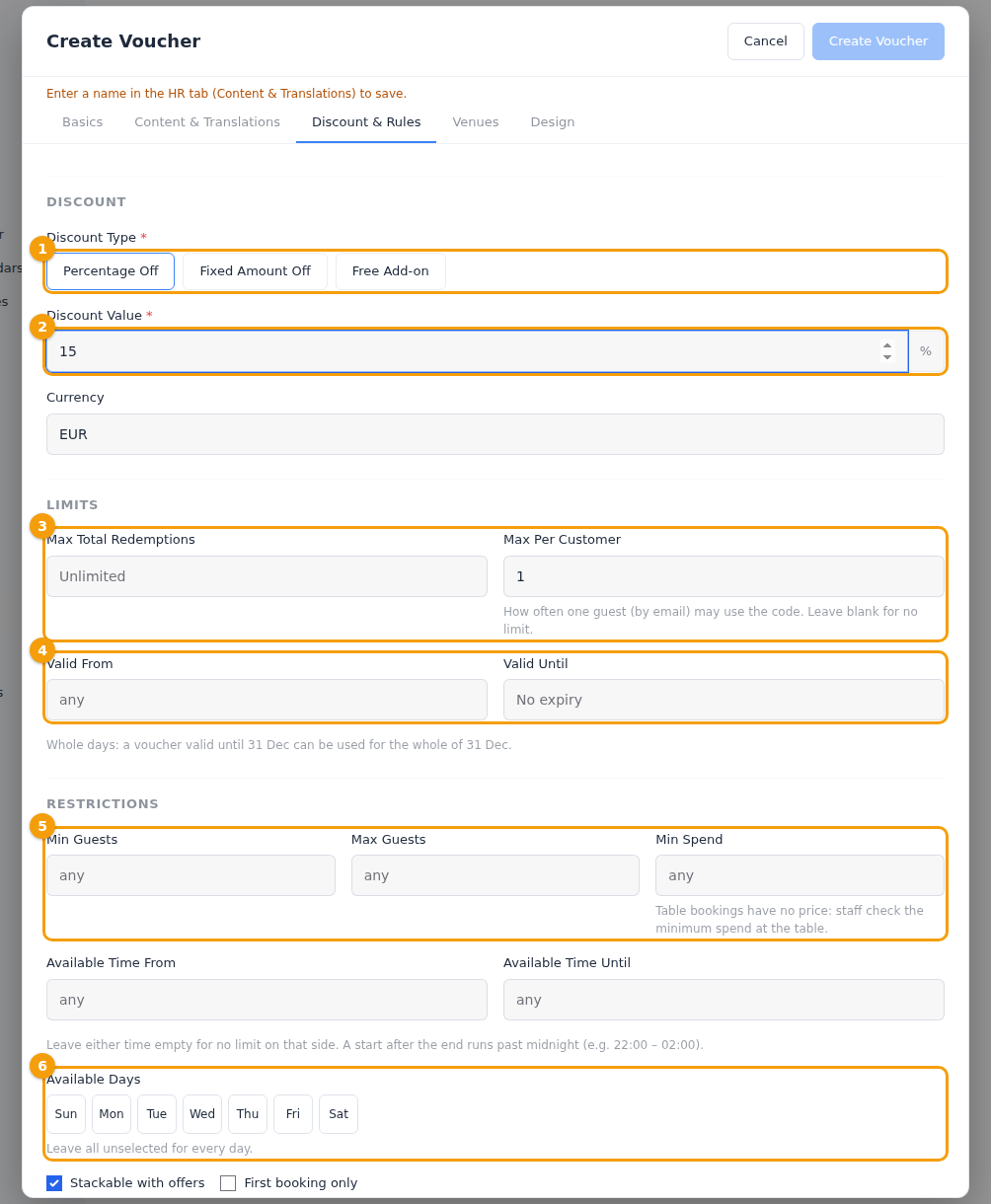
Discount
- Discount Type (1) — Percentage Off, Fixed Amount Off or Free Add-on. (A gift card has Initial Balance here instead — see Gift cards.)
- Discount Value (2) — the percentage (at most 100) or the amount. A free add-on has no value; you describe it on the Content tab.
- Currency — EUR unless you change it.
Limits
- Max Total Redemptions (3) — how many times the voucher can be used altogether. Empty means no limit (on Pro: up to 500). A single-use voucher is always 1.
- Max Per Customer (3) — how often one guest, by email, may use it. The form starts a promo code at 1; empty means no limit. A single-use voucher is always 1.
- Valid From and Valid Until (4) — whole days. A voucher valid until 31 December can be used on all of 31 December. Leave both empty for a voucher that never expires.
Restrictions (all optional; an empty box means no restriction)
- Min Guests and Max Guests (5) — the party size the voucher is for, for example up to 6.
- Min Spend (5) — shown to the guest as a condition. Nothing is checked online, because a table booking has no price: your staff check it at the table.
- Available Time From and Until — the booking times it applies to. A start after the end runs past midnight (for example 22:00 – 02:00).
- Available Days (6) — click the days it applies to; none selected means every day.
- Stackable with offers — leave it on if a guest who chose an offer may also use this voucher. Switch it off and the voucher is refused when the booking has an offer.
- First booking only — only for a guest's first booking.
The guest's booking is judged by these rules as at the booking — the date, the time and the number of guests of the table, not the day the guest typed the code.
Venues: where it works
On the Venues tab tick the locations the voucher is for. Tick none and it works at all your locations. On the Pro plan, if your business has several locations, a voucher is for exactly one location and you choose it here.
Design: how it looks
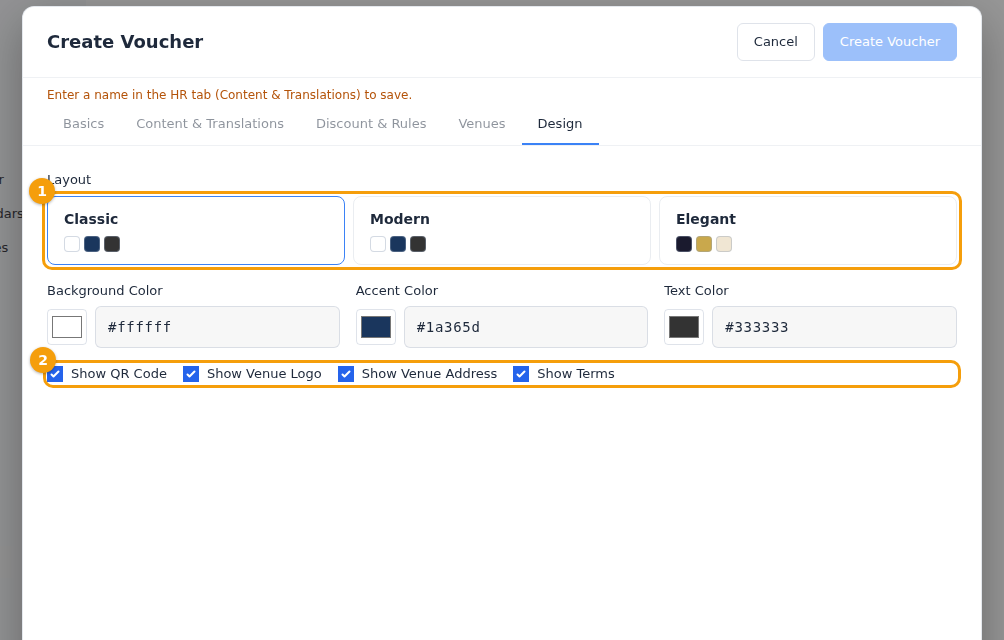
Choose a Layout (1) — Classic, Modern or Elegant — and what the printed voucher shows (2): the QR code, your logo, the address and the terms. The colours can be changed on the Ultimate plan; otherwise each layout keeps its own. How a voucher looks printed: Print or PDF.
Gift cards
Choose Gift Voucher as the type. The Discount & Rules tab then asks for the Initial Balance and the currency instead of a discount. A gift card is for a guest to spend in parts, so leave Max Per Customer empty.
A gift card typed at the booking form deducts nothing. Your staff record what the guest really spent, and the balance goes down — see Gift cards at the table. Gift cards need the Ultimate plan.
Templates
A template is a blueprint from which Clava makes a voucher for one guest. It has no code of its own and is never used directly.
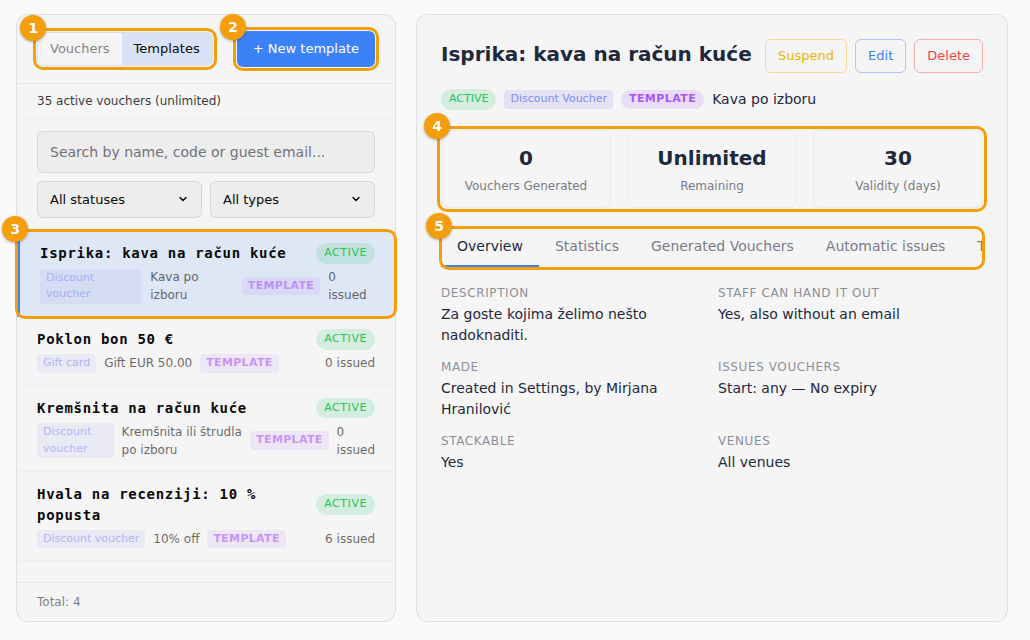
- Click Templates on the list (1), then + New template (2). (Or tick Template on the Basics tab.)
- Choose the kind of voucher it makes: Discount voucher or Gift card.
- Fill in the other tabs like for a voucher. The name is in the main language as always.
- Click Create template.
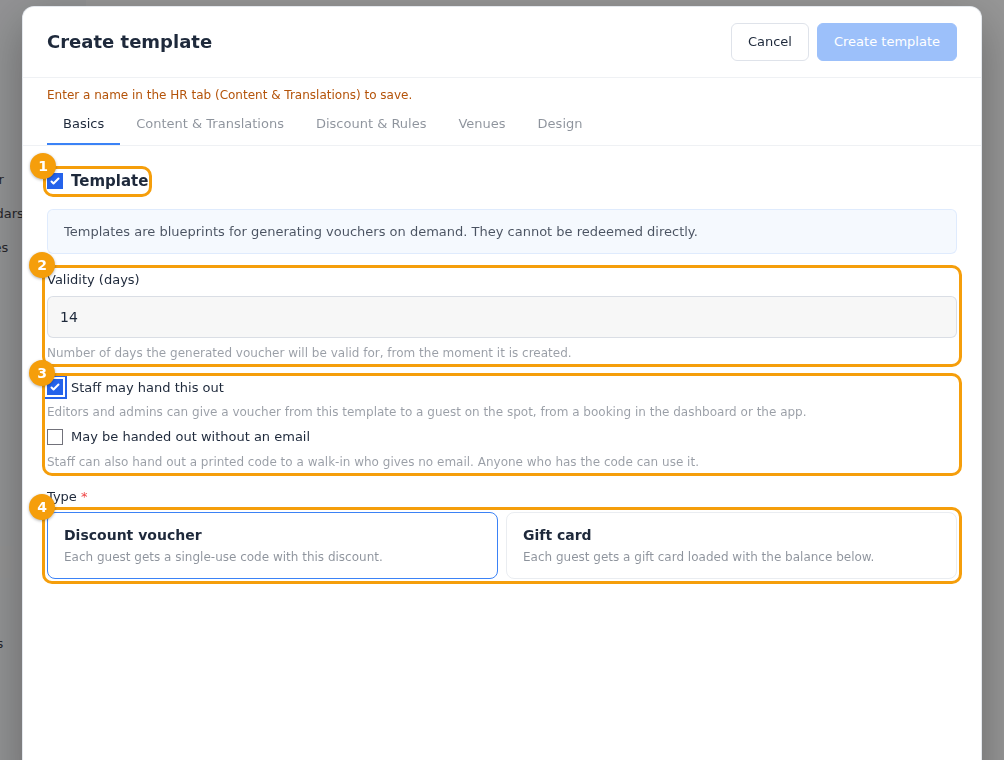
The Basics tab of a template has a few boxes of its own:
- Validity (days) (2) — how long each voucher it makes stays valid, counted from the day it is made (1 to 365; 14 if you leave it).
- Staff may hand this out (3) — editors and administrators can give a voucher from this template to a guest on the spot. See Give a voucher on the spot.
- May be handed out without an email (3) — staff can also give a printed code to a guest who gives no email. Anyone with the code can use it.
On the Discount & Rules tab a template also has Vouchers this template may issue (empty means no limit) and Issues vouchers from / until.
What you do with a template: make a personal voucher, or let a location hand it out by itself — see Make a voucher template first and Automatic voucher rules.
Change, pause and delete
Click a voucher in the list, then use the buttons at the top right of its detail.
- Edit opens the same form. The type and the code can't be changed, and who a voucher is for can't be changed once it has been used. Click Save Changes. Changes apply at once to everyone who books.
- Suspend pauses the voucher. A guest who types it is told that it is not valid, and your staff see that it is suspended. Activate brings it back.
- A voucher whose last day has passed is Expired: Edit and move Valid Until to a later day. One that was used as often as allowed is Exhausted: raise the limit (or a gift card's balance).
- Delete asks for confirmation, then removes the voucher from the list. Its code stays taken, and bookings that used it still show it.
Good to know
- Try it yourself. Make a voucher for your own email, book a table with it and open the booking: you see exactly what your team and your guest see.
- One voucher or a template? A code many guests share is a promo code. A code that should be different for every guest is made from a template or as a batch — see Give vouchers to guests.