Articles in this topic
Give vouchers to guests
Make a personal voucher for one guest, a batch of codes or vouchers for a whole list of guests, send them by email, print them or save a PDF, choose a design and see what the guest's voucher page shows.
8 min read
A voucher helps most when it reaches the right guest. This article shows the ways to hand one over: one voucher for one guest, a batch of codes, a list of guests, and a code for someone who gives no email. You also see how to print them.
The ways to hand a voucher over
| You want to… | Use | Plan |
|---|---|---|
| Give one guest their own voucher, by email | A template → Generated Vouchers → Generate Voucher. Or make a Single Use voucher with Only this guest. | Pro, Ultimate |
| Print or hand out many codes | A promo or single-use voucher → Bulk codes → Create codes | Ultimate |
| Give vouchers to a list of guests at once | Personal vouchers for a list of guests | Ultimate |
| Give someone a voucher on the spot | Give voucher on the Booking Dashboard — see Vouchers at the table | Pro, Ultimate |
| Give a printed code to a guest without an email | A template with May be handed out without an email | Pro, Ultimate |
Gift cards can only be made on the Ultimate plan.
Make a personal voucher for one guest
A personal voucher only works with the guest's own email address, so nobody else can use it.
- Under Marketing → Vouchers, click Templates and open the template, for example Apology: coffee on the house.
- Open the tab Generated Vouchers. The card Generate Voucher is at the top.
- Type the guest's Customer Email (2), or start typing a name in Find a recent guest (1) and click the guest.
- Optional: a Guest's Name to greet the guest in the email.
- Optional: change the Discount Override (or Gift card balance) and the Validity Days Override (3), if this guest should get a different amount or time than the template says. Leave them empty for the template's values.
- Optional: a Note (4) — for example apology for the long wait. Only you see it; it is saved with the voucher.
- Keep Email the voucher to the guest (5) ticked and choose the language of the email, or untick it to make the voucher without sending anything.
- Click Generate Voucher (6).
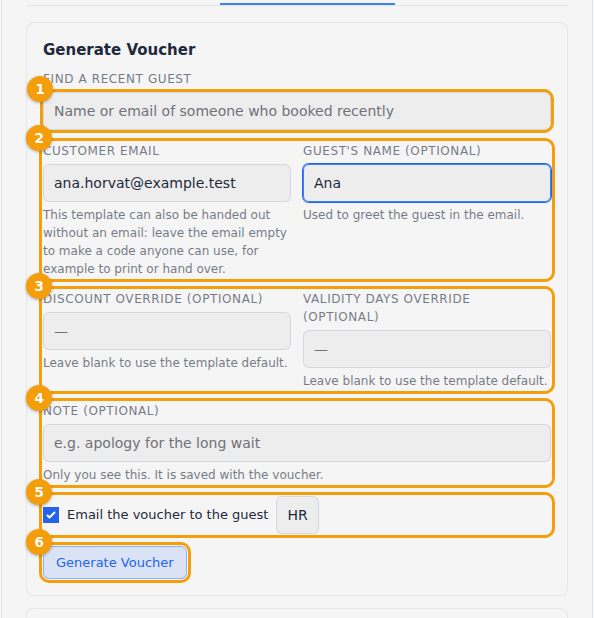
A green line tells you what happened: Voucher VCH-… was created and emailed to …. If the email could not be sent, the voucher is still made and the line says so — give the code to the guest yourself.
Good to know:
- If the guest already has an unused voucher from the same template, Clava asks whether you really want to make another one.
- The voucher email goes out in the name of a location. With several locations you can choose Send from venue.
- Emails are limited to 30 an hour for the whole business, so a mistake can't flood your guests. When the limit is reached you can still make the voucher without emailing it.
- Below the card, the list of generated vouchers shows every voucher this template made, with the guest, the validity, the status and three buttons: PDF, Copy link and Resend.
You can also make a personal voucher without a template: click + New, choose Single Use and then Only this guest — see Make a voucher.
A batch of codes
A batch is many single-use codes with the same discount, for printing or handing out — flyers, a partner, a competition.
- Open a promo or single-use voucher that is not for one guest. (A gift card, a template and a personal voucher can't be copied this way.)
- Open the tab Bulk codes.
- Under Create single-use codes enter the Number of codes (1 to 500) (1) and, if you like, a Code prefix (up to 10 letters and digits), for example OKT.
- Click Create codes (2) and confirm. The line 5 codes were created. confirms it.
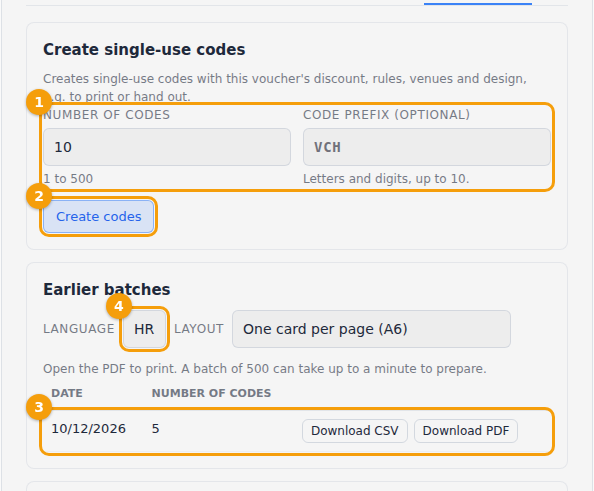
Every code is a single-use copy of the voucher: the same discount, rules, locations and design, but it can be used once. Under Earlier batches every batch has a row (3) with its date and number of codes and two buttons: Download CSV (a list of the codes, for a spreadsheet) and Download PDF (the printed vouchers, see Print or PDF).
Vouchers for a list of guests
Do you have a list of regular guests you want to thank? Make a personal voucher for each of them in one go.
- Open a promo or single-use voucher, or a template, and find the card Personal vouchers for a list of guests (on the tab Bulk codes, or Generated Vouchers for a template).
- Paste the Guests (1): one email address per line, with or without a name — ana@example.com, marko@example.com, Marko or Iva Horvat iva@example.com. At most 500 at a time.
- Below the box Clava counts them: Guests: 3 · without an email: 0 · repeated: 0.
- Optional: a Note, and a Code prefix for copies of a voucher.
- Tick Email each guest their voucher if the guests should get the email at once. At most 30 emails go out an hour; the other vouchers are still made, and you send them later with Resend.
- Click Create vouchers (2) and confirm.
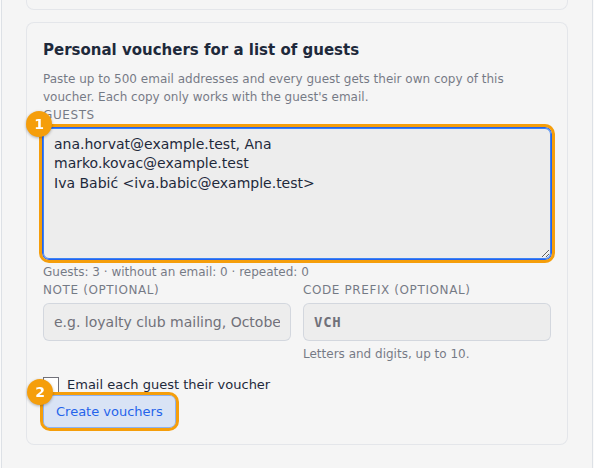
The result says 3 vouchers created, 0 skipped. A guest is skipped if the line is not an email address, if the same guest is listed twice or if the guest already has an unused voucher of this kind; the reason is shown next to the line. Each voucher only works with that guest's email address.
A code for someone without an email
A guest at the door doesn't always give an email. For this, tick May be handed out without an email when you make the template (see Templates). In Generate Voucher — or in Give voucher at the table — leave the email empty. The voucher is then not tied to a guest: anyone who has the code can use it. Nothing is emailed, so give the guest the code or a printed voucher.
Send a voucher by email
The email a guest gets is called Voucher for a guest. It contains the code, the last valid day, a button View my voucher and, for a personal voucher, the note that the voucher is personal and which email address to use. To change its words, see Email templates.
If an email did not arrive, open the template's list of generated vouchers and click Resend. A voucher that is suspended, expired or used up is not sent again.
Print a voucher or save a PDF
Open a voucher and click the tab Design.
- Choose the Language (1) of the printed voucher.
- Click Refresh Preview (2) to see it.
- Click Download PDF (3). You get one A6 page. View QR Code shows only the QR code.
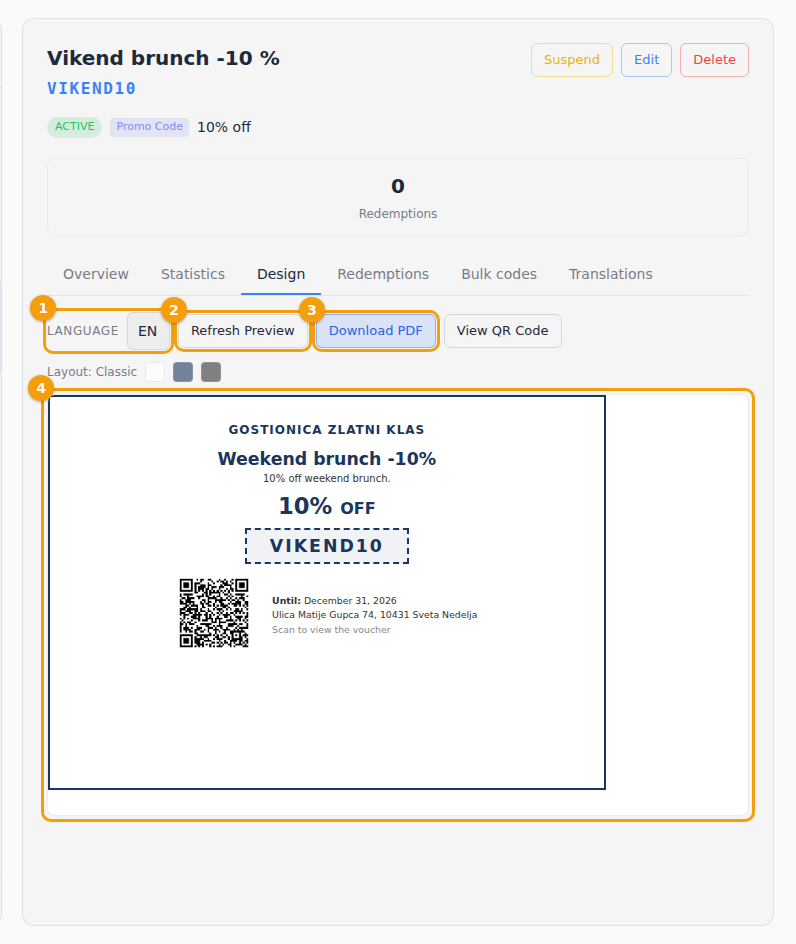
For a batch, click Download PDF in Earlier batches and choose the Layout: One card per page (A6), or a Sheet of 8 cards with cut marks (A4). A batch of 500 can take up to a minute to prepare.
A template has no card of its own, so print the vouchers it made instead — use the PDF button in its list of generated vouchers.
The three designs
You choose the design in Edit → Design → Layout:
- Classic — a clean, centred layout with a thin border. Simple and professional.
- Modern — a bold layout with a coloured panel on the left.
- Elegant — serif letters and a decorative frame, for a more formal style.
The printed voucher shows the name, the discount, the code, the last valid day, the conditions and, if you chose so, a QR code, your logo and address. On the Ultimate plan you can set the colours.
What the guest's voucher page shows
The QR code and the link in the email open a page for that voucher: its name, the discount, the code, the dates, a status (Valid, Not valid yet, Used up, Expired or Paused), the conditions, the balance of a gift card, where it can be used and your terms. A button Book a table opens your booking form with the code already filled in. The page never shows the email address the voucher belongs to.
A guest with a personal voucher also finds Email me all my vouchers there — see The guest wallet.