Articles in this topic
Attendees and check-in
See who is coming, mark payments, add guests who booked by phone, give places from the waiting list, check guests in at the door from a phone and handle a cancelled event.
9 min read
Everything about the people who come to an event is in the tabs of the event. Open Events, click Open on an event, and use Attendees, Waiting list and Check-in. For a free event the Tickets tab is called Places.
The attendee list
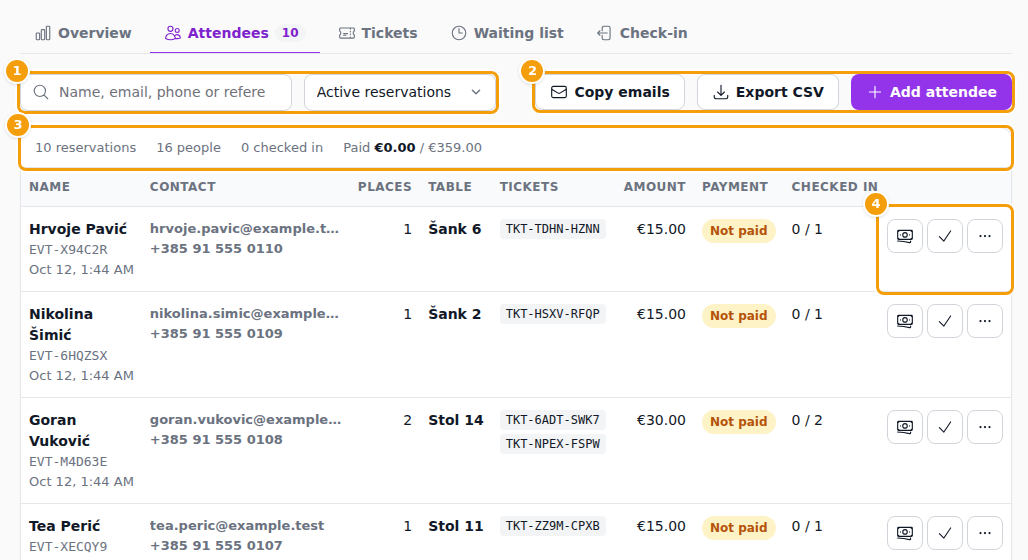
The Attendees tab lists the reservations of the event; the number next to the tab name is how many there are. A reservation is one booking by one guest, who may have taken several places.
- Search (1) by name, email, phone or reference, and use the filter to Show Active reservations (the preset), Not paid yet, Paid, Checked in, Cancelled or Including cancelled.
- The line at the top (3) counts reservations and people, how many are checked in, and how much is Paid out of what is expected.
- Each row shows the name with the reservation's reference (such as EVT-X94C2R) and the day it was made, the Contact, the number of Places, the Table if the guest chose one, the Tickets with their codes, the Amount, the Payment and how many people are Checked in.
- At the right of each row (4) are three buttons: Mark paid, Check in and a ... menu with Resend confirmation and Cancel reservation (and Mark as not paid and Undo check-in once they apply).
Above the list, Copy emails copies the email addresses of the reservations you see, so you can paste them into your email program. Export CSV downloads the list as a file.
Mark payments
Guests pay at the venue, so Clava does not know who paid until you say so. Click Mark paid on a row when the guest has paid, for example a deposit. The row then shows Paid. If you marked it by mistake, open the ... menu and choose Mark as not paid. The Overview tab adds it all up: Paid and Still to pay.
Add an attendee
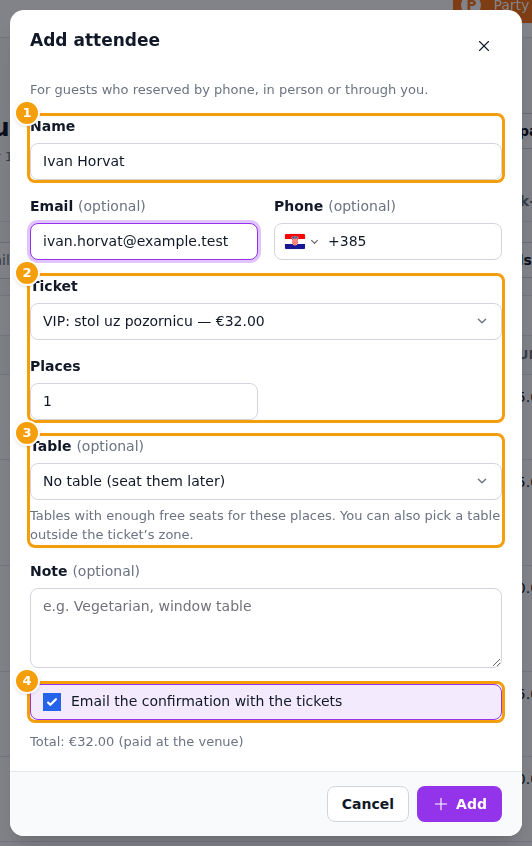
For a guest who reserved by phone, in person or through you, click Add attendee.
- Type the Name (1). Email and phone are optional.
- Choose the Ticket and the number of Places (2). The form shows the total, to be paid at the venue.
- If the event has a seating plan, choose a Table (3) or leave it at No table (seat them later). Only tables with enough free seats are offered, and you may choose a table outside the ticket's zone.
- Optional: a Note, such as Vegetarian, window table.
- If you typed an email address, Email the confirmation with the tickets (4) is ticked; untick it if you do not want one sent. Click Add.
The places count against the event's capacity and the ticket's limits, like any reservation.
Resend or cancel a reservation
- Resend confirmation sends the guest the confirmation email again, with the tickets.
- Cancel reservation asks you to confirm. Its places are released for other guests. If the reservation was paid, Clava warns you that cancelling does not refund the money: pay it back to the guest yourself. Cancelled reservations are under Cancelled; a total To refund shows what you owe.
The waiting list
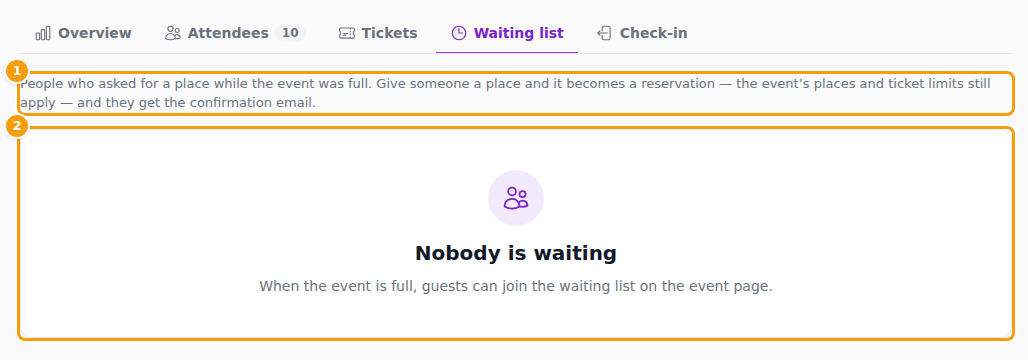
The Waiting list tab shows the people who asked for a place while the event was full, with their contact details, the places they asked for and when they joined. It appears when the waiting list is switched on for the event (Overview → Edit).
- Give a place turns a request into a reservation. Choose the ticket if asked, and tick Email the confirmation with the tickets to send it. The event's places and ticket limits still apply.
- Remove takes someone off the list. They are not told.
Handled requests are listed under earlier requests with what happened to them. On a cancelled event, nobody can be given a place.
On a meetup of a series the list can fill itself. The tab then says Places are given automatically to the first in line (members only).: as soon as a place opens, the next member gets it and is told by email. Give a place still works if you want to decide yourself. When the meetup has several ticket types, the list has a Ticket column with the ticket each person asked for (Any ticket if none).
Check in at the door
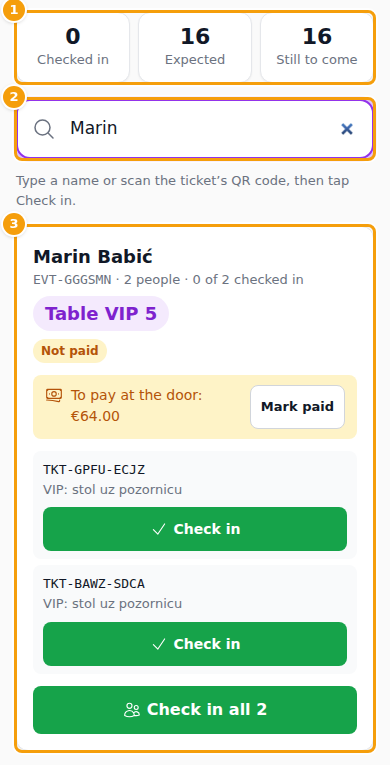
The Check-in tab is made for a phone or a tablet at the entrance. Open the event on the device and tap Check-in.
- The counters (1) show Checked in, Expected and Still to come.
- Type a name, a reference or a ticket code into the search box (2). The QR code on a guest's ticket contains its ticket code, so you can also scan it into the box. The reservation appears (3) with the number of people, how many are already in, the table and, if it is still unpaid, To pay at the door with a Mark paid button.
- Tap Check in next to a ticket to let one person in, or Check in all 2 to let the whole group in.
- A mistake? Undo takes a check-in back. A ticket that is already in tells you when it came in.
The counters and the Checked in column of the attendee list update as you go. People with editor access can check in; others can look guests up.
If an event is cancelled
When you cancel an event, its reservations stay on the Attendees tab so that you know who has to hear from you. Use Copy emails to write to everyone, or tick Notify attendees in the dialog. Reservations that were already paid are listed in Cancelled with the amount To refund — Clava does not return money itself.