Articles in this topic
Closed days and blocked times
Close your location for online bookings on holidays, private events or just a few hours, without changing your weekly working hours.
6 min read
Your working hours say when you are open in a normal week. The Blocked Dates tab is for the exceptions: a public holiday, a holiday week, a private party that takes over your restaurant from 13:00 to 20:00. Guests cannot book online in the time you block.
On this tab everything is saved the moment you click Save in a window. There is no separate save button.
Weekly closing day, or blocked date?
| Your situation | Where to set it |
|---|---|
| You are closed every Monday | Working Hours: leave Monday empty |
| You change your hours for the whole season | Working Hours |
| Christmas, a holiday week or a renovation | Blocked Dates: whole days |
| A private party from 13:00 to 20:00 | Blocked Dates: only some hours |
The year view
In the menu on the left, click Booking Calendars, click your calendar and open the Blocked Dates tab. The tab shows all twelve months of one year.
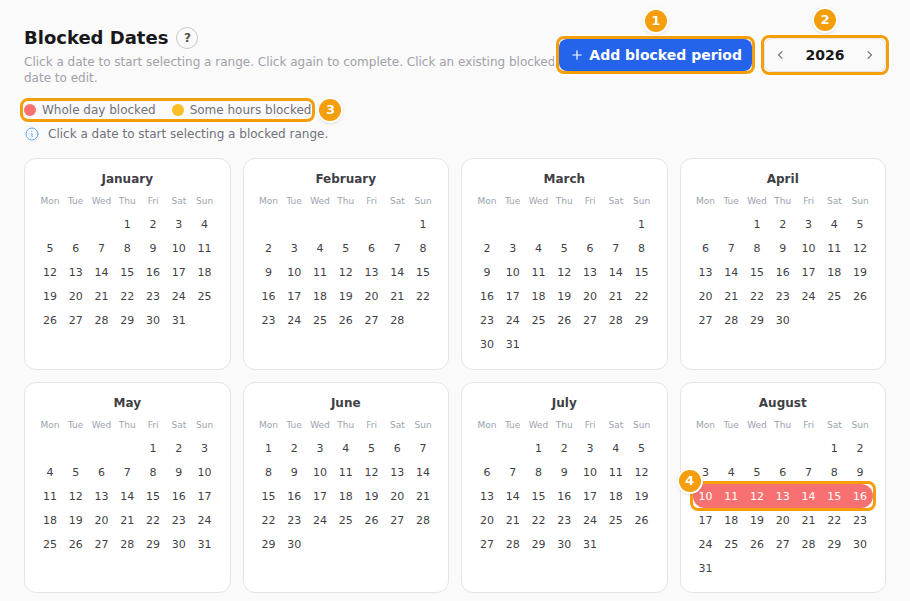
- Add blocked period (1) opens the window to add a block.
- The arrows (2) show the year before or after. The current year opens first.
- The colour key (3) explains the colours: red days are blocked for the whole day, yellow days only for some hours. Today has a light circle.
- A block that lasts several days is drawn as one bar (4).
- Hover over a blocked day to see the hours and the reason.
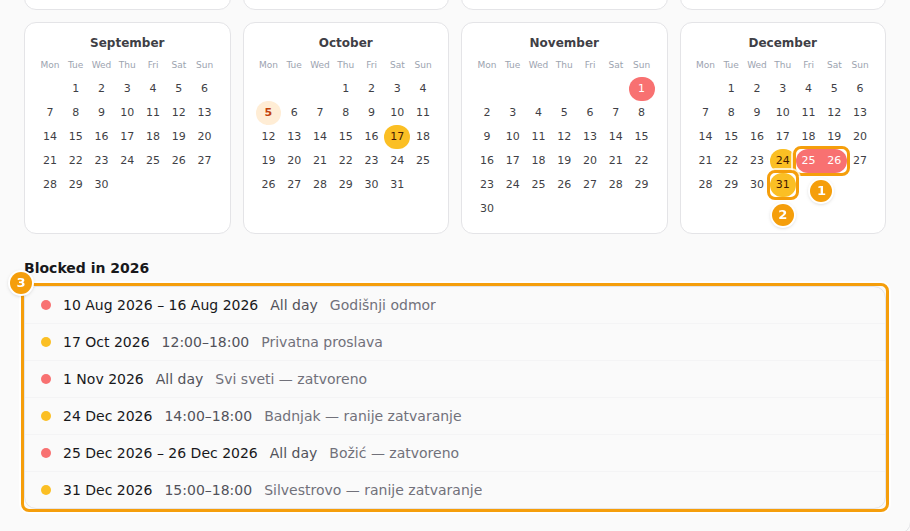
Scroll down to the list Blocked in 2026 (the year you are looking at). It shows every block of that year with its dates, its hours and its reason.
Block whole days
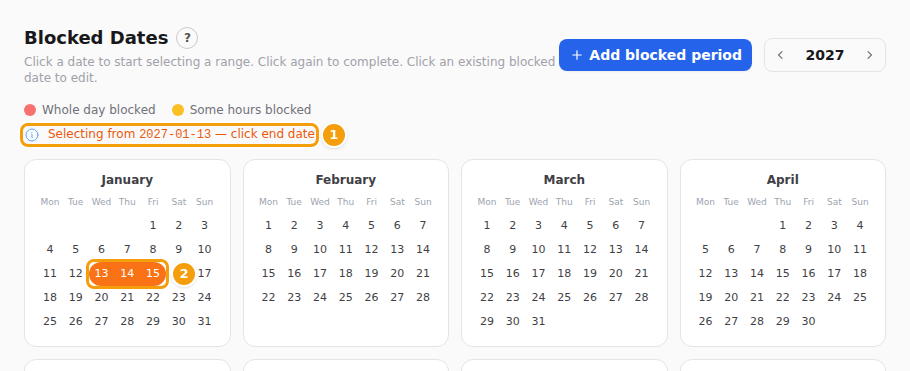
- Open the Blocked Dates tab and click the first day you want to close. The line under the colour key changes to Selecting from 2027-01-13 — click end date, and the days from your first click to the day under your mouse light up.
- Click the last day. For a single day, click the same day twice. The window Add Blocked Date opens with the dates already filled in.
- Keep Whole day (3) ticked.
- If you like, type a Reason (4), for example Public holiday. Only you and your team see it. Guests never do.
- Click Save (5). The message Blocked dates saved. appears and the days turn red.
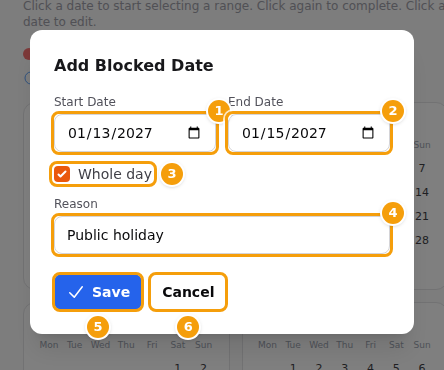
You can also click Add blocked period and type the dates into Start Date (1) and End Date (2) yourself. The window then starts with today's date.
Cancel (6) closes the window without saving anything.
Good to know
The date fields follow the date format of your browser, so you may see the month before the day.
Block only a few hours
Use this for a private event or an early closing time.
- Open the window Add Blocked Date, as described above.
- Untick Whole day (1). The boxes From (2) and To (3) appear.
- Choose the hours. From goes in steps of 15 minutes. To goes up to 24:00.
- Type a Reason and click Save.
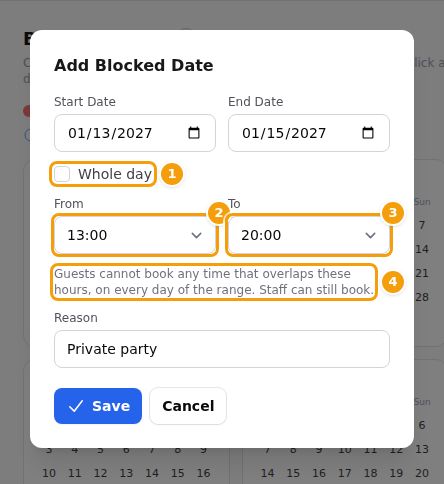
The hours apply to every day from the start date to the end date. A window cannot run past midnight; for 22:00 to 02:00, make two blocks, one for each day.
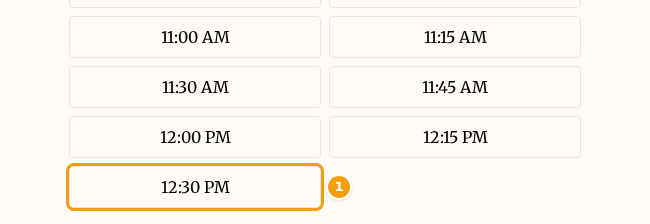
Guests cannot book any time that overlaps your blocked hours. A table is held for 90 minutes, so the last time before a block is 90 minutes ahead of it. Example: with 14:00 to 18:00 blocked, the last time a guest can pick is 12:30, because a guest who sits down at 12:45 would still be at the table at 14:00.
Change or remove a block
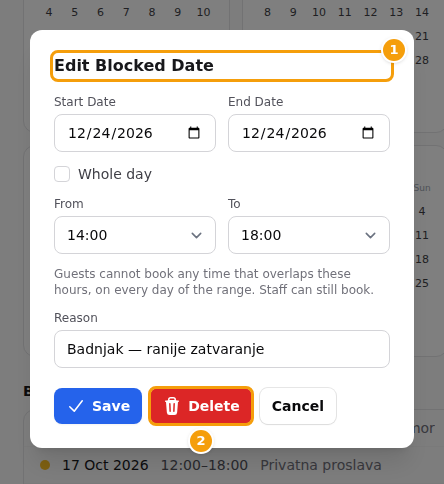
- Click a coloured day in the year view, or a line in the list Blocked in 2026. The window Edit Blocked Date opens.
- Change the dates, the hours or the reason, and click Save. Or click Delete (2) to remove the block.
- That is all. The change is saved at once.
Careful
Delete removes the block straight away and does not ask. If you delete one by mistake, add it again.
Clicking a day that is already blocked opens that block. To add hours to a day that is already blocked, click Add blocked period. If a day has a whole-day block and a block of hours, the year view shows it in red; open the other block from the list.
Bookings you already have
Blocking time never cancels or moves a booking. Bookings that were made before stay as they are.
After you save or delete a block, if upcoming bookings fall inside blocked time, a yellow message stays on the screen until you close it. It says, for example, 2 upcoming bookings fall inside blocked time and They were kept. Open the booking page and use "In blocked time" to rebook them or contact the guests.
- Click Open booking page in the message. It opens your team's booking screen for this location. (The button is there when the calendar is linked to a location.)
- Click In blocked time. You see the bookings in blocked time with their date, time, guest and number of guests.
- Contact these guests, or move their bookings to another time.
If you closed the message, you can open the booking page of your location in Booking Management at any time and use In blocked time there. The button is shown for as long as at least one upcoming booking is in blocked time.
What your guests and your team see
- Guests cannot book a blocked day. On the date picker, a blocked day looks like any other day, but nothing happens when a guest clicks it. On a day with blocked hours, the list of times is shorter.
- Your team can still book blocked times. Their booking screens show a banner such as Blocked all day or Blocked followed by the hours, with the note Guests cannot book these times online. Staff can still book them.
- Your website does not announce the closure. If you want guests to know why you are closed, write it on your website, for example in a text section or an event.
Tips
- Test it like a guest. Open your booking page in a private browser window and look at a blocked day and at a day with blocked hours.
- The reason is only for you. It is not translated and guests never see it, so write it in your own language.
- Blocks do not repeat. A holiday you blocked this year is not blocked next year. Use the year arrows and add it again.
- One block, one reason. If your closing days have different reasons, add a block for each, so the list tells you at a glance why each is closed.