Articles in this topic
Shop and tickets
Sell tickets to an event, and let your guests reserve things from your own shop, such as souvenirs or drinks, and pay at the venue. How to set up ticket types, categories and products, and how to follow the orders.
6 min read
For the couple or host of a party.
Some parties sell tickets and some have a shop. Both are in your menu when they apply to your party.
Tickets
Tickets is for events that sell tickets, such as a concert or a party open to the public. It is in the menu when Ticketing is on, on the dashboard. A wedding with a guest list does not need it.
The page has two tabs, Ticket types and Orders, and four numbers above them: Sold / reserved, Validated (tickets that have been used), Remaining and Revenue.
Add a ticket type
- On Ticket types press Add ticket.
- Write the Ticket name and a Description, and set the Price, or tick Free ticket.
- Set Total available (how many tickets there are; leave it empty for no limit) and Max per person.
- Under On sale from and On sale until choose when the ticket can be bought, or leave them empty for always.
- Set the Status: Active or Suspended. A suspended ticket cannot be bought.
- Press Save.
A ticket that already has purchased or used tickets cannot be deleted; Suspend it instead. Orders lists every ticket with its code, its type, the guest, the holder and the status: Reserved, Purchased or Validated. You can search by code, name or e-mail address.
Your shop
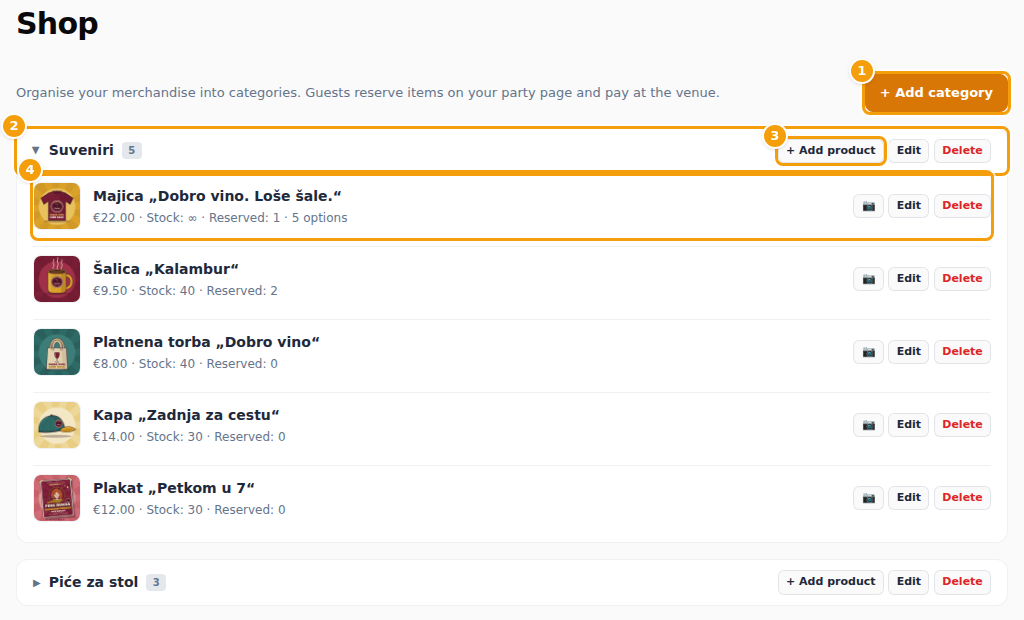
In the Shop you offer things that guests can reserve on your party website and pay for at the venue. The shop shows on your website while Show present list is on, on the dashboard.
- (1) Add category makes a group, such as "Souvenirs". Give it a Name and a Description, and keep it Active.
- (2) A category. The arrow opens it. Edit changes it, Delete removes it with all its products.
- (3) Add product adds a product to the category.
- (4) A product, with its price, stock and how many are reserved. Edit changes it. The camera button adds a picture.
For a product you write the Title, a Short description and a Description, and the Price. Stock is how many there are; leave it empty for unlimited. Max per guest limits how many one guest can reserve. Visible in shop and the dates Available from and Available until decide when guests see it. For sizes or colours add Options, for example "Size M"; an option can have its own price and stock. A category can be switched off with Active, and a product with Visible in shop.
A product or category that guests have already reserved cannot be deleted: you are told to cancel their orders first.
Pre-orders and their deadline
On the dashboard, under Deadlines, you can set the Shop pre-order deadline. When it passes, the shop is closed. As Show present list is the switch for both, the gift list closes with it. See Deadlines.
Shop orders
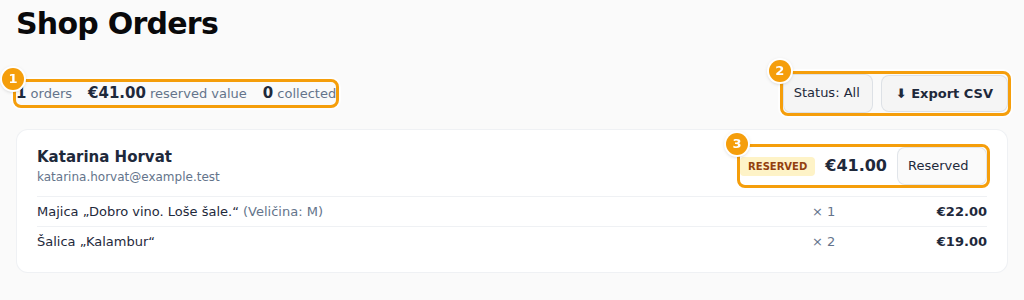
Shop Orders lists what guests have reserved.
- (1) The numbers: how many orders, their reserved value and how many are collected.
- (2) Status shows only some orders, Export CSV downloads the list.
- (3) Every order shows the guest, the things they reserved with their quantity and price, and its status. Change the status as the order goes along: Reserved, Confirmed, Collected or Cancelled.
Good to know
If a ticket or a product shows an Anchor price, that is the reference price that the rules of some countries, for example Croatia, compare a reduced price with. Enter it when the page asks you to. A change is saved together with a reason and your name.